

Use the Objects and Views page under the My Storage Analysis category of the Windows Client Options wizard to determine which objects and views display in the My Storage Analysis section of your Home Page.
The types of object views that you can specify to be automatically displayed in the My Storage Analysis section of your Home view are:
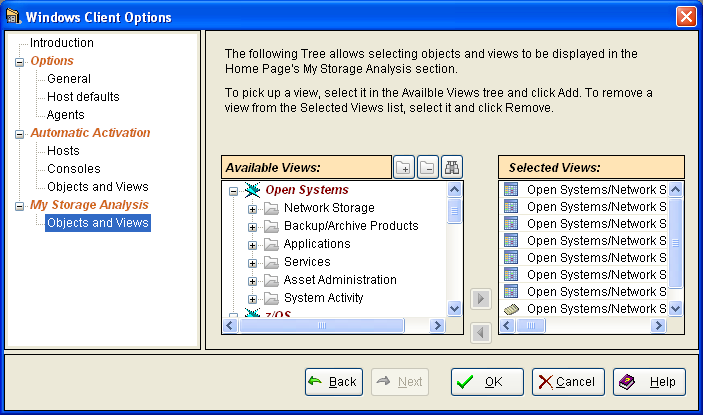
The Objects and Views page under the My Storage Analysis section of the Windows Client Options wizard provides two windows. The Available Views window displays all the object views available in the Object Tree. The Selected Views window lists the object views you have specified to include in the My Storage Analysis section of the Home view.
Select an object view in the Available Views window and then click the Add selected views arrow to move it to Selected Views list.
Select an object view in the Selected Views window and then click the Remove selected views arrow to remove it from the Selected Views list.
Note: To display graphs in the My Storage Summary section of the Home view, see My Storage Summaries.
The following is an example of the Objects and Views page under the My Storage Analysis section of the Windows Client Options wizard:
|
Copyright © 2013 CA.
All rights reserved.
|
|