

From the Main Menu, select Tools, and then Options to access the Windows Client Options wizard. Use the Windows Client Options wizard to specify global settings of Windows Client behavior. The options available in the Global Options dialog are global to the Windows Client and the defined hosts.
The Windows Client Options wizard is a multiple-page dialog that has a title bar at the top which provides the wizard title, a navigation tree pane on the left side, the page pane in the center, and the button bar at the bottom.
To make or modify Windows Client Options settings, move from page to page providing or modifying information until all the settings are completed. The wizard provides defaults whenever they are available.
The following is an example of the Windows Client Options wizard Introduction Page:
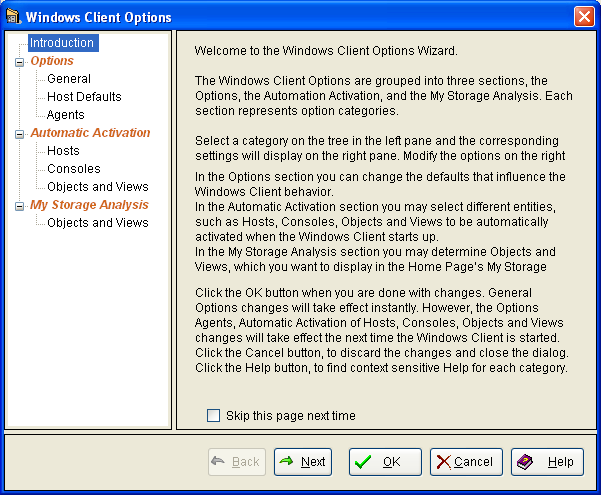
The Windows Client Options wizard navigation tree is split into the following categories:
The following wizard pages are located under the Options category:
Use this page to configure the Windows Client general behavior.
Use this page to configure the default behavior of all hosts.
Note: When there is a conflict between a Windows Client Options setting in the Host Defaults page of the Windows Client Options wizard and a host definition setting (right-click a host definition in the Host List window and click Options), the host definition setting takes precedence.
Use this page to configure the behavior of the following agents:
The following wizard pages are located under the Automatic Activation category:
Use this page to specify the connections that you want connected automatically when the Windows Client is activated. For z/OS, you can automatically connect to more than one host.
Use this page to specify which Consoles you want automatically opened when the Windows Client is activated.
Use this page to specify which object views you want automatically opened when the Windows Client is activated.
The following wizard page is located under the My Storage Analysis category:
Use this page to specify the object view links to be listed in the My Storage Analysis section of the Home view.
|
Copyright © 2013 CA.
All rights reserved.
|
|