

Use the Objects and Views page under the Automatic Activation category of the Windows Client Options wizard to specify which objects and views you want automatically opened when the Windows Client is activated. You can select more than one object or view.
The types of object views that you can specify to be automatically displayed when you start the Windows Client are:
Note: You must select specific hosts in the Hosts page of the View and Output Definitions wizard of the object views. Optionally, you can have a valid user ID and password in those host definitions. If the host definitions do not contain valid login credentials, you are prompted to login to those hosts before the object views are displayed when you start the Windows Client.
The following is a sample of the Objects and Views page under the Automatic Activation section of the Windows Client Options wizard:
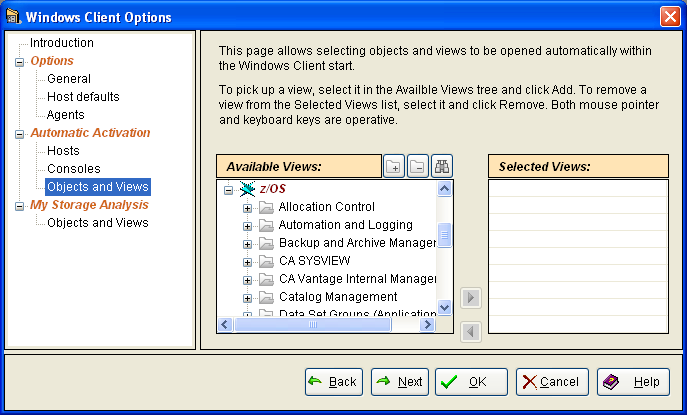
To specify an object or object view is to be activated when you start the Windows Client
The Windows Client Options wizard is displayed.
The Automatic Activation - Objects and Views page is displayed.
The object view is highlighted.
The object view appears in the Selected Views pane.
The object view is activated the next time you start the Windows Client.
To remove an object or object view so it is not activated when you start the Windows Client
The Windows Client Options wizard is displayed.
The Automatic Activation - Objects and Views page is displayed.
The object or view is highlighted.
The object view no longer appears in the Selected Views pane.
The Windows Client Options wizard closes. The object view is no longer activated when you start the Windows Client.
|
Copyright © 2013 CA.
All rights reserved.
|
|