

The User Manager provides an easy way to create and manage users and administrators. Access the User Manager from the Tool menu or from the upper left side of the Home view. Use the User Manager to create additional users and administrators.
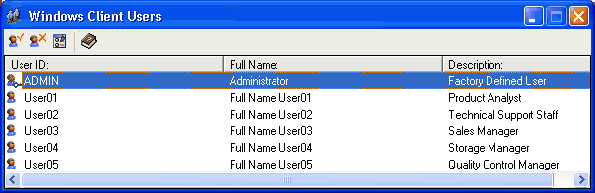
The following table describes the User Manager icons and functions.
|
Icon |
Function |
|
|
Use the Add User icon to define new users. |
|
|
Use the Delete User icon to remove an existing user. |
|
|
Use the User Properties icon to change user settings. |
|
|
Use the Help icon to access online help. |
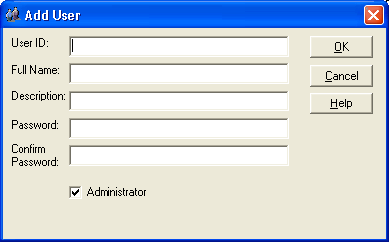
Check the Administrator box in the User dialog to grant the new user administrator rights, as shown in the following example.
|
Copyright © 2013 CA.
All rights reserved.
|
|


