

When you have defined hosts within the Windows Client, you can open an alternative Host List Menu, shown in the following example, by right-clicking the host in the Host List window.
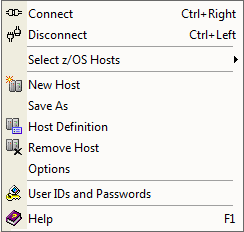
The Host List Menu provides the following commands:
Attempts to connect to the host selected. If user ID or password (or passphrase) are not specified in the Host Definition then you are prompted for log on credentials.
Disconnects you from the selected hosts.
The following mainframe host selections are available, which you can use to select more than one z/OS host:
Selects all host definitions in the Host List window.
Selects only hosts that are connected.
Selects only hosts that are not connected.
Note: You can also press Ctrl+click hosts to select more than one host randomly in the list, or click one host and then press Shift+click another host to select a block of hosts in the list. You can press Ctrl+click a selected host to unselect it.
Saves the selected Host Definition to a new host name. This option can be used to copy (clone) a host definition.
Opens the Host Definition dialog. If you have selected an existing host definition, the Host Definition dialog is populated with the host information, which you can modify. If no host is selected, you can use the Host Definition dialog to define a new host definition.
Deletes the selected Host Definitions.
Opens the Host Specific Options dialog, as shown in the following sample. Use this dialog to set the host default options for the system:
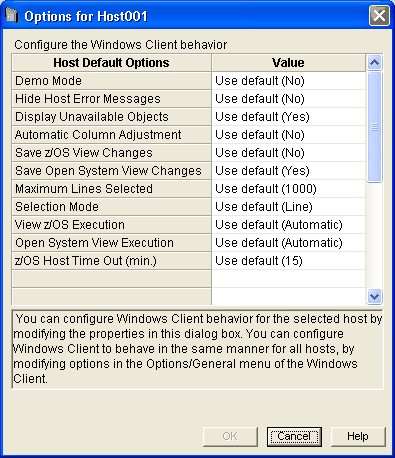
Note: Host Options settings override Global Options settings. For more information about Global Options settings see the section Options (Windows Client Options Wizard).
Lets you define a new host user ID and password for the selected host definition. If you select multiple hosts to, for example, change the password for all, they must be of the same Host Definition password type in order to do the change.
|
Copyright © 2013 CA.
All rights reserved.
|
|