

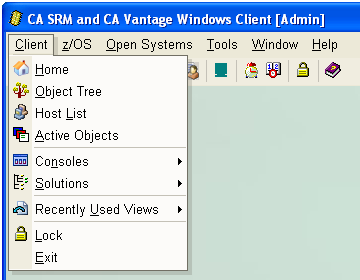
The Client Menu has the following menu options:
Displays the Home view. You can also display the Home view by clicking the Home View toolbar icon.
The Home view is a browser-style home page. The page is split into two panes. The left pane contains a full‑featured set of links to most of the Windows Client functions. You can set up the right pane to display graph views and trends of your storage resources.
Displays the Object Tree view. You can also display the Object Tree view by clicking the Object Tree view toolbar icon.
The expandable and collapsible Object Tree lists all the objects for each host to which the Windows Client is connected. Objects represent physical and conceptual components associated with one or more z/OS hosts or a single Open Systems Application Server.
Displays the Host List view. You can also display the Host List view by clicking the Host List view toolbar icon.
The Host List window lists the user-defined z/OS and open systems hosts that have been defined in the Windows Client.
Displays the Active Objects List view. You can also display the Active Objects List view by clicking the Active Objects List view toolbar icon.
The Active Objects view provides a convenient way to see a list of all the objects and windows currently open in your Windows Client. You can use it to display or bring forward any object view in the list. If any log collectors are active, they will also be listed. The window displays the name of the object, the host to which it belongs, the type of display (table, graph, or list), and the object's state.
Displays the list of your Consoles. You can also display the list of Consoles by clicking the Consoles toolbar icon.
Consoles let you monitor numerous object attributes across any or all the hosts to which the Windows Client is connected and display them in one table. You can use a Console configured to monitor all the critical storage pressure points in an organization to provide you with a quick snapshot of the overall health of your organization.
Displays a list of your Solutions. You can also display the list of Solutions by clicking the Solutions toolbar icon.
A Solution is a subset of Object Tree information that lets you view only the Object Tree information that you want to view. This option allows you to create a personalized Object Tree consisting of certain views from the Object Tree. You create a Solution by selecting categories, objects, or User Views from the Object Tree and grouping them in a window.
Displays a list of the objects you most recently viewed. You can also display the list of the objects you most recently viewed by clicking the Recently Used Views toolbar icon.
Click an item in the list to display the object.
Select Lock to lock the Windows Client. The Lock option functions similarly to a password-protected screen saver. Lock freezes and minimizes the Windows Client workspace without shutting down the application. This prevents unauthorized use of an unattended Windows Client workspace.
To unlock the Windows Client
The Login dialog is displayed.
The Exit command closes the Windows Client application.
The following is an example of the Client Menu drop-down list:
|
Copyright © 2013 CA.
All rights reserved.
|
|