

Use the Destinations page of the View and Output Definition wizard to send output to one or more destinations. Select Destinations in the navigation tree to display the Destinations page. The following is an example of the Destinations page:
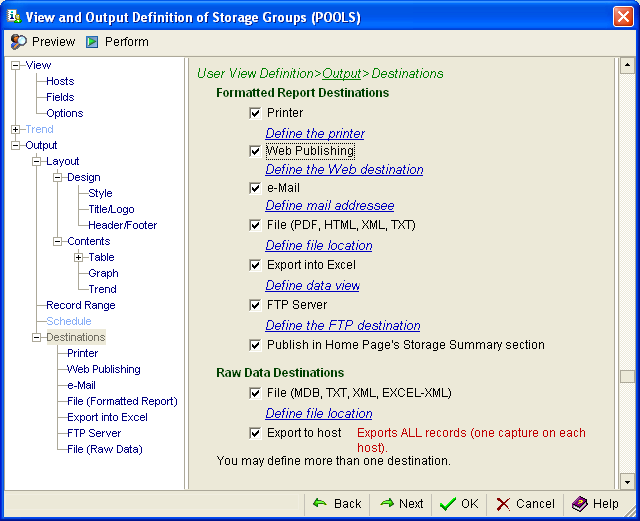
When you check any of the destination options, the corresponding left pane becomes selectable because additional parameters are needed. Publish in Home Page's Storage Summary Section and Export to Host do not require further parameters, so navigation tree options for these functions are not provided. You have the option of selecting the corresponding navigation tree node (page title) or the link under each option (for example under the Printer option you can select the link Define the printer) to view the corresponding page where you specify further parameters needed.
The following options are available in the Destinations page:
Select this option if you want to print the view. It displays a simple print dialog where you can specify the printer, number of copies, and orientation.
Select this option if you want to publish the reports as web pages on your local drive, a file server on your domain, or a web server on your domain.
When you select this option and then the link Define the Web destination on the page, a destination table is displayed allowing you to navigate to the directory where you want the reports published.
Observe the following:
Select this option to specify a destination address for the email, provide a subject and email message, and specify a report format. To specify an address, enter the address in the To field, or click the To button to access your email address book. The mail function automatically populates the subject line with the report name. You can overwrite this to enter your own subject. The email function populates the Text field with a default text. You can overwrite this to enter your own text. The report is sent as an email attachment. Click the format radio button to specify the format for the attachment.
The following attachment report formats are available:
The default format is PDF.
Note: A PDF file is recommended because generally speaking it is much smaller than the equivalent HTML or Excel (XML+XSD) file.
Select this option to specify the file location and type to generate for formatted reports. You can specify the report format or you can select any combination of formats for reports.
The following report formats are available:
Observe the following:
Select this option to specify a destination address for the Excel spreadsheet, and to specify formatting.
The following formats are available:
Click the Perform button, the data is written to a comma-delimited text file and automatically imported into an Excel spreadsheet. The spreadsheet is displayed in Excel and is filed in the directory specified.
Observe the following:
Select this option to send the report to a FTP Server. When selected the FTP Server dialog appears. The FTP Server dialog allows you to specify the FTP Server you want the report sent to and it allows you to select the format of the report. he following report formats are available:
Select this option to have a trend or graph of your storage resources appear in the My Storage Summary section of the Home view:
Note: For instructions on how to have trends and graphs of your storage resources appear in your Home view using this wizard, see the section Home View.
Select this option to specify the file location and format of raw data reports. The following report formats are available:
When you select MDB, by default the Windows Client creates a database in Microsoft Access 2002 - 2003 format. This is the native format for Office XP/2003. You can also use Office 2005. If you specify an existing Access 95/97/2000 database, you can output data to those older formats also.
Observe the following:
Select this option to export a copy of the object to the host. If you check the Export to Host check box and then click the Perform button, a copy of the object (capture data) is written to a sequential data set on the host using naming conventions established as part of the host configuration. The capture data exported to the host (according to the Schedule option or click Perform to export data immediately) can be viewed from the object Operate menu, Show Log/Cap, Capture option.
If multiple hosts are selected in the Hosts page of the wizard, one snapshot (capture data) is created on each host regardless of what you select for Multi-host Options in the Options page of the wizard. No multi-host combination of records occurs.
|
Copyright © 2013 CA.
All rights reserved.
|
|