

Use the Host page of the View and Output Definition wizard to define those hosts from which you want to gather data. To access the Host dialog, select Hosts from the navigation tree. The following is a sample of the Host page:
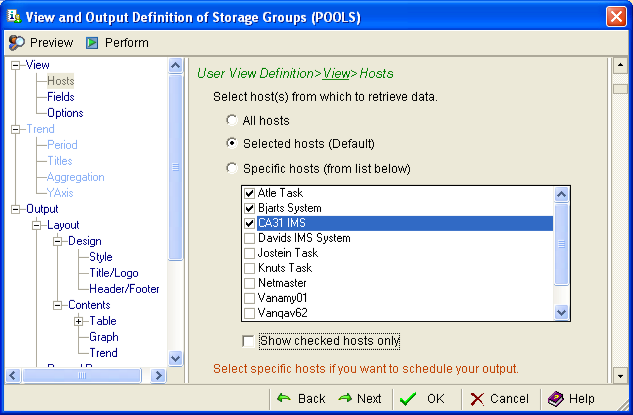
The following options are available on the Host page:
Choose this option to connect to all hosts in the Host List, and retrieve data.
Selected hosts (Default)
Choose this option to connect to only your currently selected hosts in the Host List, and retrieve data. If you are connected to a host not selected in the Host List, the client does not retrieve data from it.
Choose this option to ignore your current connections, but connect and retrieve data from the specific hosts that you check in this dialog. You may use this option for online viewing, but you must use this option if you want to schedule output using the Output - Schedule function. That is, once the hosts are specified Output - Schedule becomes active in the tree pane on the left and you can schedule and route output to different destinations.
Note: For scheduled output, the Host Definition for all the specified hosts must contain the z/OS user ID and password for the logon connection. If they do not, the connection at the schedule time for the desired report will fail. Also, if selected hosts are not available or the object (component) is disabled at the time the data retrieval occurs then the system will skip the unavailable hosts and report on available hosts only.
Check this to limit the hosts displayed in this dialog to only those selected. When the check is removed it displays all hosts defined in the Host List.
|
Copyright © 2013 CA.
All rights reserved.
|
|