

There are two ways to delete Web Publishing Files using Windows Client options:
Note: When you specify that Web Publishing files are to be published to a directory other than the default directory (\BrightStor SRM Data\Database\Web Publishing); a copy is also output to the \BrightStor SRM Data\Database\Web Publishing directory. Subsequently if you want to delete all Web Publishing files produced by a User View then you need to specify both the default directory location of \BrightStor SRM Data\Database\Web Publishing and the other directories you specified in Web Publishing.
To issue the Delete Web Publishing Files command
By choosing either of these options the Clean Web Publishing Files dialog is displayed:
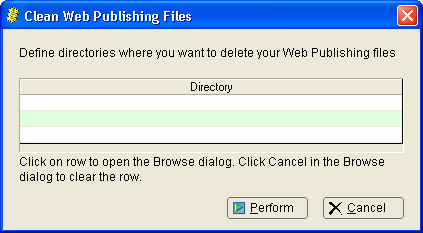
The Browse for Folder dialog is displayed:
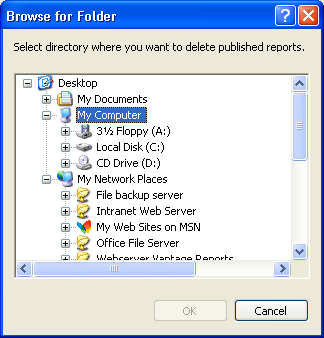
Note: If you also want to delete web published files that you defined to be published on another directory other than the default directory then you must perform these steps again and select the directory you defined.
The Clean Web Publishing Files dialog is displayed with the directory you selected.
Note: In the following example the default directory (\BrightStor SRM Data\Database\Web Publishing) is shown in the ‘C’ directory, the default directory might be under a different drive letter on your PC.
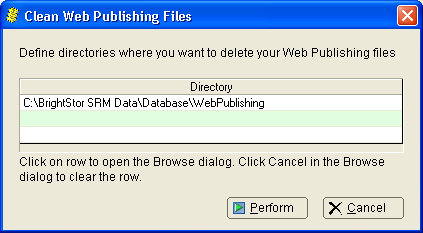
The Clean Web Publishing Files dialog disappears and the web published files are deleted from the directory.
|
Copyright © 2013 CA.
All rights reserved.
|
|