

This section contains the following topics:
Queries and Reports in a Federated Environment
Configuring a CA User Activity Reporting Module Federation
A single CA User Activity Reporting Module server returns data from its internal event database to respond to queries and populate reports. If you have a federation of CA User Activity Reporting Module servers, you can control how queries and reports return event information in the way you configure your federation relationships. You can also maintain query results from single servers by disabling the Use Federated Queries global setting.
By default the global setting, Use Federated Queries, is enabled. This causes queries from a parent CA User Activity Reporting Module server to be sent to all child CA User Activity Reporting Module servers. Each child CA User Activity Reporting Module server queries the active event log store and the archive catalog as well as querying all of its child CA User Activity Reporting Module servers. Each child CA User Activity Reporting Module server then creates a single results set to send to the requesting parent CA User Activity Reporting Module server. Protection against circular queries is built into CA User Activity Reporting Module to enable meshed configurations.
A typical enterprise CA User Activity Reporting Module implementation has from one to five servers. A large enterprise implementation may have ten or more servers. The way you configure your federation controls how much information is visible to the CA User Activity Reporting Module server that issues the query. The simplest query type comes from the primary CA User Activity Reporting Module server and returns information from all of the child servers configured under it.
When you query the federation from a child server, the results you see depend on how you have your federation configured. In a hierarchical federation, all of the servers that are configured as children under one server return query results to it. In a meshed federation, all of the interconnected servers return data to the server that issues the query.
Hierarchical federations use a top-down, pyramid structure to spread event collection loads over a wide area. The structure is similar to an organization chart. There is no set number of levels that you have to create - you can create the levels that make the most sense for your business needs.
In a hierarchical federation, you can connect to any CA User Activity Reporting Module server to see reports on its event data and data from any of the child servers beneath it. The scope of the data that you can access is limited by where you start in the hierarchy. If you start in the middle of the hierarchy, you can see only that server's data, and any of its child server's data. The higher up you move in a hierarchical federation, the wider the scope of network data you have. At the top level, you have access to all of the data in the whole deployment.
Hierarchical federations are useful, for example, in regional deployments. Suppose that you want local resources to have access to event data within a certain hierarchy, or branch, of the network, but not the event data in other, parallel branches. You could create a hierarchical federation with two or more parallel branches to contain the data for each region. Each of the branches could report to a management CA User Activity Reporting Module server at the headquarters office for the top-down view of all event log reports.
In the federation map shown in the diagram that follows, the network uses the management CA User Activity Reporting Module server as a reporting server and multiple collection servers in a configuration that is similar to an organization chart. The management/reporting server acts as a parent CA User Activity Reporting Module server and provides user authentication, authorization, and major management functions as well as the reporting functions of handling queries, reports and alerts. The collection servers in this example would be children of Management/Reporting Server 1. You could arrange additional levels in the hierarchy. However, there can be no more than one management server. Additional levels would be composed of reporting servers as parents to collection servers.
As an example of this style of federation, Management/Reporting Server 1 might be located at your headquarters office, with collection servers located in regional or branch offices represented by Collection Servers 1 and 2. Each branch could get reporting information on its own data, but not the data from the other branch. For example, from Collection Server 1, you can query and report on data only on Collection Server 1. From Management/Reporting Server 1, however, you can query and report on data from the Management/Reporting Server 1, Collection Server 1 and Collection Server 2.
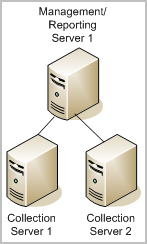
In a hierarchical federation, each CA User Activity Reporting Module server can have one or more children, but only one parent. You configure this type of federation in a top-down fashion, starting with the management server. Then you move through each downward layer to configure the child reporting and collection servers. The key to configuring a federation is in first making a map of the servers and the intended relationships. Then you can configure a CA User Activity Reporting Module server as a child server, to implement the relationships between them.
A meshed federation is similar to a hierarchical federation in that it may have tiers. The primary difference is in the configuration of the connections between the servers. A meshed federation can allow any CA User Activity Reporting Module server in the network to query, and report on, the data in all of the other CA User Activity Reporting Module servers. The capabilities for reporting depend on the relationships you create between the servers.
For example, in a meshed federation, the servers may interconnect only within a vertical branch. This means all CA User Activity Reporting Module servers in that branch would have access to all other CA User Activity Reporting Module servers in the same branch. This is in direct contrast to a CA User Activity Reporting Module server in a hierarchical federation, which can produce reports only on the servers beneath it in the hierarchy.
In a ring or star formation, every CA User Activity Reporting Module server is configured to be a child of all of the other servers. When you request report data from any one CA User Activity Reporting Module server, you see the data for all CA User Activity Reporting Module servers in the network.
The meshed federation allocates two or more CA User Activity Reporting Module servers as primary and uses servers in federation without respect to their placement in the network. The servers configured as children are also configured to view the children in the same or other branches as federated to them. For example, if you had two CA User Activity Reporting Module servers, A and B, you could create a meshed federation by making B a child of A, and A a child of B. This is the expected configuration when you are using two or more management servers.
Consider the following illustration of a fully meshed federation:
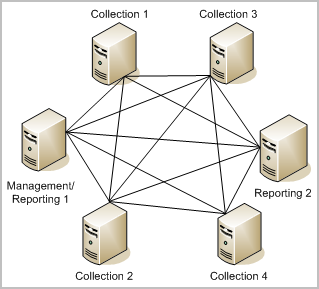
In the meshed federation shown in this diagram, four collection servers are federated to each other and to both reporting servers. Every server is both a parent and a child to every other server in the federation.
A potential benefit of this deployment over the strict hierarchical federation is that you can access the data from any point within the mesh, and get results from all other CA User Activity Reporting Module servers in that mesh, without regard to a hierarchy.
You can combine meshed and hierarchical federations to make any configuration that suits your needs. For example, a meshed configuration within a single branch could be very useful for global deployments. You could obtain a global overview of data from the parent reporting servers, while maintaining regional clusters (branches) that have access only to their own data.
Each CA User Activity Reporting Module server that you add to a federation must reference the same application instance name on the management server. In this way, the management server can store and manage all of the configurations together, as global configurations.
You can configure the federation at any time, but it is useful to do so before you begin scheduling reports, if you want consolidated reports.
Configuring a federation involves the following activities:
This first group of child servers forms the second layer, or tier, of the federation if you are configuring a hierarchical federation.
Configuring one CA User Activity Reporting Module server as the child of another is the essential step in creating a federation. Use this procedure to add servers to your federation at any time. You must install all of the CA User Activity Reporting Module servers you want to federate under the same registered application instance name prior to performing this part of the configuration. As you install each new server, its name appears in the list of servers available for federation. You can perform this procedure as many times as is necessary to create the federated structure you want.
To configure a CA User Activity Reporting Module server as a child server
The CA User Activity Reporting Module servers you selected and moved into the list are now federated children of the parent server.
You can view a graph showing the CA User Activity Reporting Module servers in your environment, their federation relationships, and status information about individual servers. The federation graph lets you view the current federation structure, and view status details of each server. You can also select the local server that is queried within that session, setting it as the parent server.
To view the federation graph, click Show Federation Graph and Status Monitor at the top of the screen: 
A window appears showing a graphic display of all the event store hosts registered with the current management server:
You can select a current local server for query purposes.
You can also view status details for any of the displayed servers. Click a server in the federation graph to show status detail displays, including:
|
Copyright © 2014 CA Technologies.
All rights reserved.
|
|