

To display a pop-up menu within the Object Tree, right-click a folder, object, or User View in the Object Tree. The menu varies according to your selection. The following shows you three sample pop-up menus:
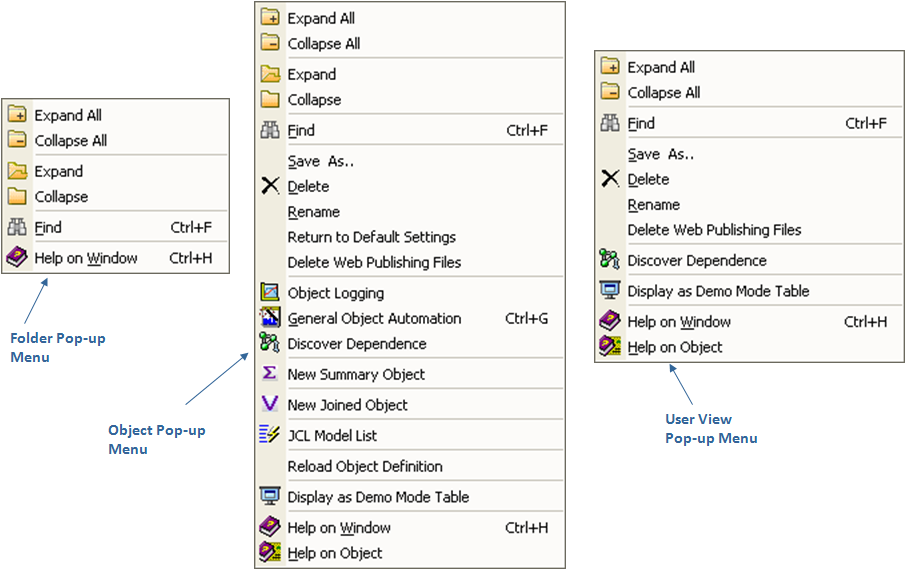
As shown, all three menu types provide Expand, Collapse, Find, Delete Web Publishing Files, and Help commands.
In addition to those options, from the Object pop-up and the User View pop-up menus you can also select:
This option will delete the User View. It will also delete any web published files that were created by the User View output destination Web Publishing. For example; if you had Web Publishing file output to the default directory \BrightStor SRM Data\Database\Web Publishing then those files will be deleted also. If your Web Publishing destination was to a directory other than the default then the system will delete the User View and it will delete both the Web Publishing files from the directory \BrightStor SRM Data\Database\Web Publishing and the directory you defined.
This option is used to delete Web Publishing files you had the system publish to a directory, even if the Web Publishing destination was previously removed from the User View.
Note: When you specify that web published files are to be published to a directory other than the default directory \BrightStor SRM Data\Database\Web; a copy is also output to the \BrightStor SRM Data\Database\Web Publishing directory. Subsequently if you want to delete all Web Publishing files produced by a User View then you need to specify both the default directory location of \BrightStor SRM Data\Database\Web Publishing and the other directories you specified in Web Publishing. For information about how to use this option, see the topic Deleting Web Publishing Files in the chapter "User Views."
The JCL Model List is a feature you can use to select JCL models to be used by objects or a group of objects using pattern matching. These models can be used to perform actions or storage management functions in batch jobs. The models can contain object variables that will be substituted upon request or at submit time.
Note: For more information about the JCL Model List feature, see the chapter "Working with the JCL Model List" in the CA Vantage SRM User Guide.
Available only if you have displayed an object in graph or list view format and saved either view as the default view. This option allows you to display the object in table view regardless of the default view you last saved the object.
Displays the object demo data (as a Demo Mode Table) if demo data exists. It does not obtain the object data from the host, but obtains and displays the object demo data from the Windows Client's demo data repository. Observe the following:
The Object pop-up menu has these additional options:
If this is selected a confirmation window will appear asking if you want to return the object to default settings. This will remove filters, sorts, and so on, which you have applied to the object.
Where you can define trends for the object.
This initiates the Automation Scripts Builder wizard, which lets you define or modify automation scripts for the object.
This displays the Object Dependency dialog, which shows the dependent entities of an object present in the Window Client and the host. The dialog is divided into multiple sections and each section represents an entity category. The following are the dependent entities sections that can be displayed for an object:
The Object Dependency dialog also indicates if items have further dependencies and you can display those dependencies by clicking the View further dependencies icon ( ) displayed at the end of the row of the items that have further dependencies. If the icon is not displayed on an item row then there are no further dependencies for it. If the icon exists on a row and you click it, then a new Object Dependency dialog is displayed showing its dependencies.
The number of dependent entities is displayed in the status bar at the bottom right corner of the dialog.
Note: For more information about the Object Dependency dialog, click Help in the dialog.
This initiates the Summary Object Designer wizard, which allows you to create new Summary Objects.
If you right-click an existing Summary Object in the Object Tree, then the Object Tree pop-up menu includes the following Summary Object related options:
Note: For more information about Summary Objects and these options see the chapter "Working with Summary Objects" in the CA Vantage SRM User Guide.
This option allows you to view all the Summary Object's settings in a simple dialog, called the Summary Object Viewer dialog.
This option allows you to modify the Summary Object settings. It opens either the Modify Summary Object dialog (for the objects with unique names), or the Summary Object Designer wizard (for non-unique name or factory-supplied Summary Objects) in modify mode for the Summary Object selected, allowing you to make modifications or create a unique name Summary Object based on the Summary Object selected.
This option allows you to delete the Summary Object definition from the host and Windows Client repositories. It opens the Delete Summary Objects dialog.
Note: You cannot modify or delete a factory-supplied Summary Object. If you try to modify or delete a factory supplied Summary Object you will received the message "Factory Delivered Summaries Cannot Be Modified."
Opens the Joined Object Designer wizard. The Joined Object Designer wizard guides you through the process of creating a Joined Object. This option is available on z/OS objects only.
If you right-click an existing Joined Object in the Object Tree, then the Object Tree pop-up menu includes the following Joined Object related options:
Opens the View Joined Object Settings dialog for the selected Joined Object, allowing you to view the settings of the Joined Object.
Opens the Modify Joined Object Settings dialog for modifying the selected Joined Object.
Opens the Deleting Joined Object dialog which can be used to delete the selected Joined Object.
Note: For more information about Joined Objects and these options see the chapter "Working with Joined Objects" in the CA Vantage SRM User Guide.
This option reloads the attributes of the selected object from the host and saves them locally on your PC. If the object definition already exists in your Windows Client data base, the Windows Client overwrites it with the newly downloaded definition.
|
Copyright © 2013 CA.
All rights reserved.
|
|