

As a CA SOI administrator, you need immediate notification whenever any connector shuts down in your IT infrastructure so that you can take quick actions and can resolve the issue. CA SOI provides notifications and detailed logging whenever a connector shuts down. This improved and faster notification mechanism contains detailed information about the connector shutdown behavior, including an appropriate reason for the shutdown. The availability of the relevant information in the log messages helps you troubleshoot connectors, keep track of the connector status in your infrastructure, and take any prompt actions, if necessary. You can review the related log files to find more information about any anomaly that you encounter in the connector behavior. The easy identification of the problem that is associated with the connector also lets you manage your domain managers more efficiently.
The Integration Framework (IFW) as part of its heartbeat mechanism sends detailed description of the connector status to the SA Manager. The IFW sets and maintains a connector property statusDesc for this purpose. The statusDesc property includes information about the connector status and any error conditions that occur. The SA Manager reads and stores the property value to display it to the user in the product UI. The connector status information is also logged in the SAM-IntegrationServices_wrapper.log file and <ConnectorName>_HEARTBEAT_PUB.txt file.
The enhanced connector notification and logging mechanism, therefore, helps you as follows:
2012/11/26 01:33:57 : abc-vm02.xy.com : CA:00056_service-discovery@abc-vm02.xy.com : OFFLINE - Connector was stopped from Administration UI. : Broadcasting HeartBeat Message
statusDesc=Connector was stopped from Administration UI.
For example, consider a scenario where a connector is stopped from the Administration UI. In this case, an appropriate message about the connector status is displayed at various locations. You can see the message in the product UI, SAM-IntegrationServices_wrapper.log file, <ConnectorName>_HEARTBEAT_PUB.txt file (if enabled), and in the email that is sent to the administrator (if enabled). By reading the message, you can quickly identify the reason for the connector shutdown and take appropriate measures.
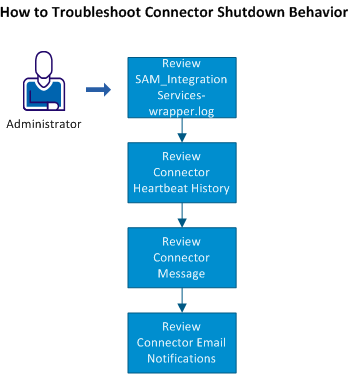
Use this scenario to guide you through the process:
|
Copyright © 2013 CA.
All rights reserved.
|
|