

Applies to CA6300 appliance
When you start the appliance, if the RAID controller cannot detect a drive, the BIOS requests you to accept the configuration changes to the array and initiate a rebuild with fewer drives. We recommend rebuilding the array before attempting to detect a missing drive.
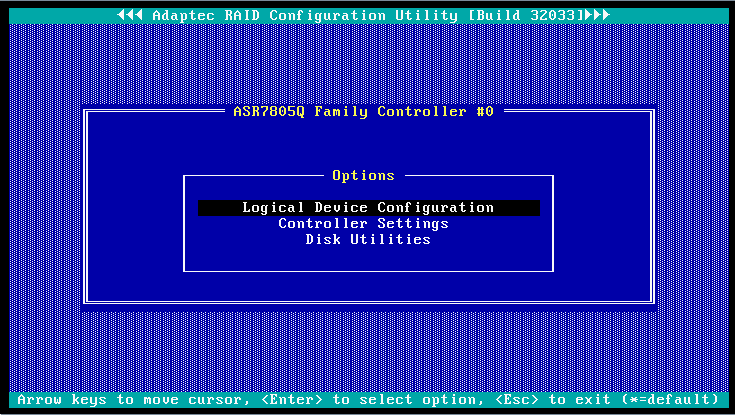
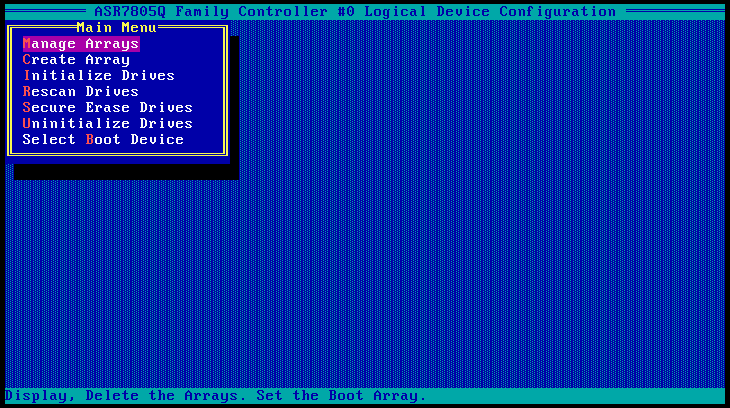
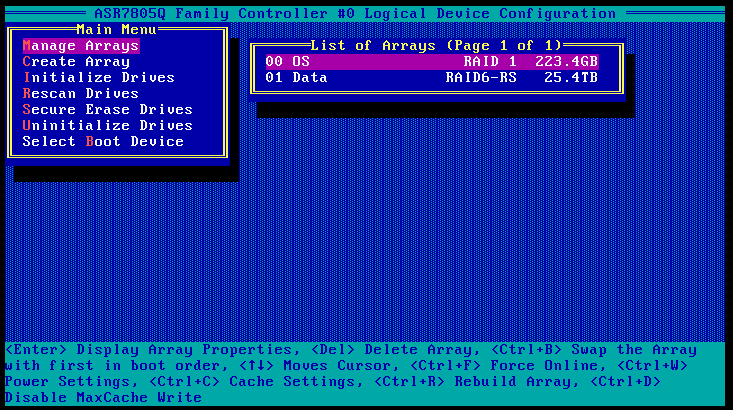
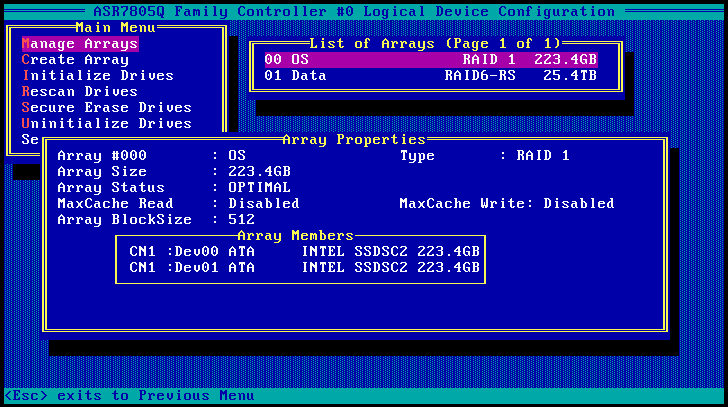
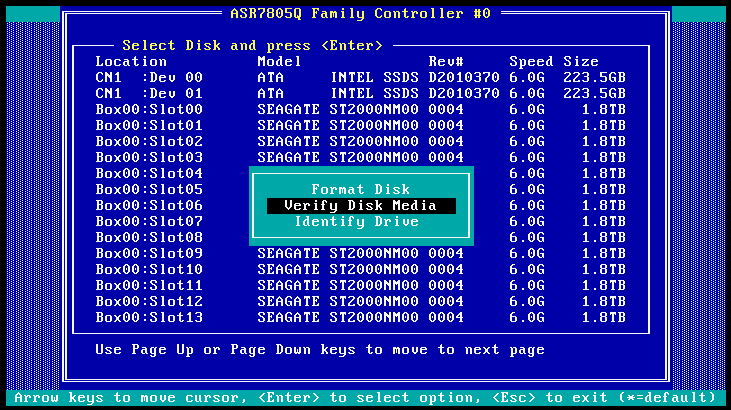
Use the RAID Configuration Utility to list the drives currently seen by the RAID controller:
If the utility does not detect a drive, use the RAID Configuration Utility to rescan the drives in the array and verify their status. It is possible that a rescan will allow the RAID controller to detect the drive. If rescanning the drives currently seen by the RAID controller confirms that the physical drive is not available, replace the physical drive as soon as possible. Contact CA Support for assistance.
Note: The BIOS utilities lists the drives that are detected by a RAID controller, but it does not indicate the status of a particular drive, such as Failed or Rebuilding, within a logical array.
Follow these steps:
The appliance continues to operate in its Degraded state unless you press Ctrl+A within the 30-second window. If you miss this window, restart the appliance and press Ctrl+A.
Applies to CA6000 appliance
When you start the appliance, if a RAID controller cannot detect a drive, the BIOS requests you to accept the configuration changes to the array and initiate a rebuild with fewer drives. We recommend rebuilding the array before attempting to detect a missing drive.
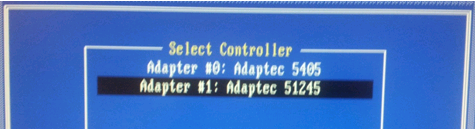
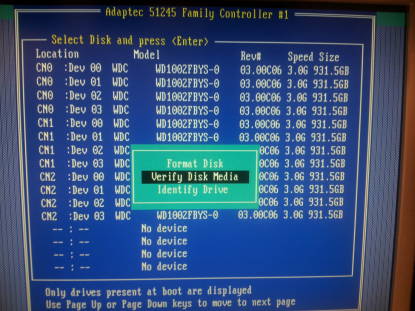
Use the Array Configuration Utility to list the drives currently seen by the RAID controller:
If the utility does not detect a drive, use the Array Configuration Utility to rescan the drives in the array and verify their status. It is possible that a rescan will allow the RAID controller to detect the drive. If rescanning the drives currently seen by the RAID controller confirms that the physical drive is not available, replace the physical drive as soon as possible. Contact CA Support for assistance.
Note: The BIOS utilities lists the drives that are detected by a RAID controller, but it does not indicate the status of a particular drive, such as Failed or Rebuilding, within a logical array.
Follow these steps:
The appliance continues to operate in a degraded state unless you press Ctrl+A within the 30-second window. If you miss this window, restart the appliance and press Ctrl+A.
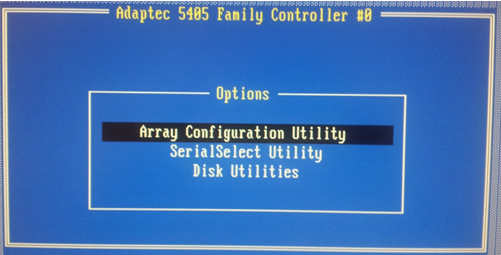
The Array Properties lists each drive in the array. If a drive is not listed, select Rescan Drives from the Main Menu to force the BIOS to rescan the drives in the Array and verify their status.
If a rescan successfully detects a missing drive:
|
Copyright © 2015 CA Technologies.
All rights reserved.
|
|