

Applies to CA6300 appliance
Recover a physical drive by using the Disk Utilities option in the RAID Configuration Utility to verify disk media for errors and attempt recovery of bad sectors. Attempt recovery of a physical drive when a RAID array experiences any of the following conditions:
Estimated time to recover a failed drive: 2-3 hours per drive
After attempting disk recovery, rebuild the array. If this is not successful, contact CA Support to request a disk drive replacement.
Important: In the CA Multi-Port Monitor web interface, use the RAID section of the System Status page to verify the logical array number of the failed disk. It can take up to two hours to verify a physical drive.
Follow these steps:
If necessary, restart the appliance again and press Ctrl+A.
After the BIOS scan completes, select the Disk Utilities option in the RAID Configuration Utility.
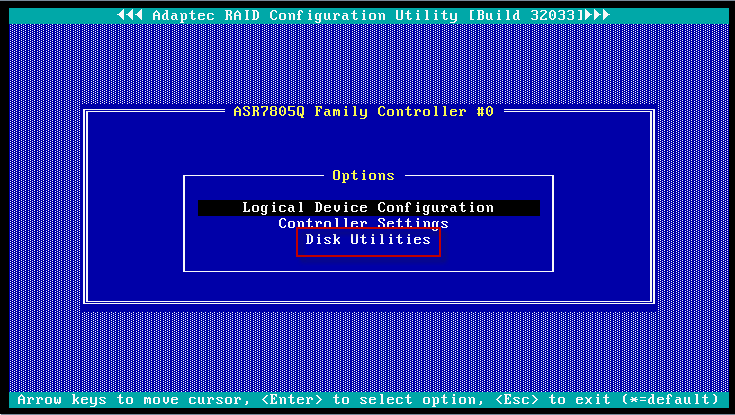
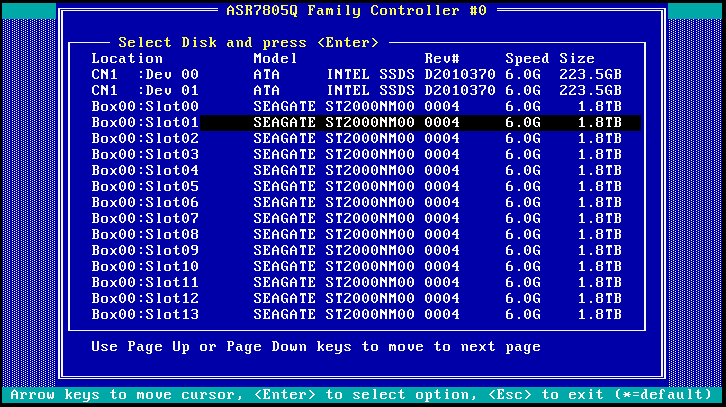
CN1 :Dev 00 corresponds to Disk 1
CN1 :Dev 01 corresponds to Disk 2
Box00:Slot00 corresponds to Disk 0
Box00:Slot01 corresponds to Disk 1
Box00:Slot02 corresponds to Disk 2
Box00:Slot03 corresponds to Disk 3
Box00:Slot04 corresponds to Disk 4
Box00:Slot05 corresponds to Disk 5
Box00:Slot06 corresponds to Disk 6
Box00:Slot07 corresponds to Disk 7
Box00:Slot08 corresponds to Disk 8
Box00:Slot09 corresponds to Disk 9
Box00:Slot10 corresponds to Disk 10
Box00:Slot11 corresponds to Disk 11
Box00:Slot12 corresponds to Disk 12
Box00:Slot13 corresponds to Disk 13
Box00:Slot14 corresponds to Disk 14
Box00:Slot15 corresponds to Disk 15
Note that for the Data Array, disks 0 through 15 correspond to drives 0 through 15 on the front of the Multi-Port Monitor chassis.
In the following example, the highlighted disk corresponds to Data array Disk1.
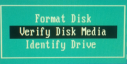
It can take up to two hours to verify and recover a physical drive.
Applies to CA6000 appliance
Recover a physical drive by using the Drive Utilities to verify disk media for errors and attempt recovery of bad sectors. Attempt recovery of a physical drive when a RAID array experiences any of the following conditions:
Estimated time to recover a failed drive: 2-3 hours per drive
After attempting disk recovery, rebuild the array. If this is not successful, contact CA Support to request a disk drive replacement.
Important: In the CA Multi-Port Monitor web interface, use the RAID section of the System Status page to verify the logical array number of the failed disk. It can take up to two hours to verify a physical drive.
Follow these steps:
If necessary, restart the appliance again and press Ctrl+A.
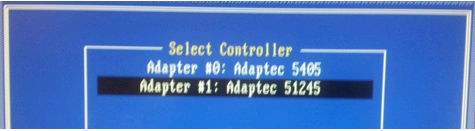
CN0 :Dev 00 corresponds to Disk 1
CN0 :Dev 01 corresponds to Disk 2
CN0 :Dev 02 corresponds to Disk 3
CN0 :Dev 03 corresponds to Disk 4
Note that for the System Array, disks 1 through 4 correspond to the same drive numbers on the front of the Multi-Port Monitor chassis.
CN0 :Dev 00 corresponds to Disk 1
CN0 :Dev 01 corresponds to Disk 2
CN0 :Dev 02 corresponds to Disk 3
CN0 :Dev 03 corresponds to Disk 4
CN1 :Dev 00 corresponds to Disk 5
CN1 :Dev 01 corresponds to Disk 6
CN1 :Dev 02 corresponds to Disk 7
CN1 :Dev 03 corresponds to Disk 8
CN2 :Dev 00 corresponds to Disk 9
CN2 :Dev 01 corresponds to Disk 10
CN2 :Dev 02 corresponds to Disk 11
CN2 :Dev 03 corresponds to Disk 12
Note that for the Data Array, disks 1 through 12 correspond to drives 5 through 16 on the front of the Multi-Port Monitor chassis.
In the following example, the highlighted disk corresponds to Disk 8.
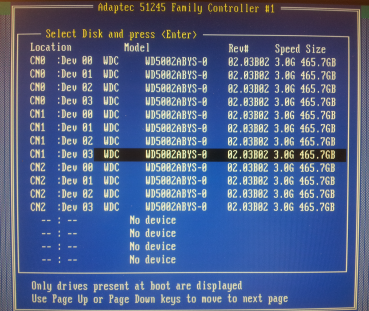
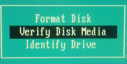
It can take up to two hours to verify and recover a physical drive.
|
Copyright © 2015 CA Technologies.
All rights reserved.
|
|