

Post Deployment › Change and Update Passwords › Change Password › Change Database Administrator Password › (Database) Update Database Password in CA Service Operations Insight
(Database) Update Database Password in CA Service Operations Insight
Update the database password in CA Service Operation Insight.
Follow these steps:
- Log in to the system where you have installed CA Service Operations Insight.
- Update the SA Store Connection password in all CA Service Operations Insight files by using the EncryptSAMCreds.bat utility.
- Shut down the CA SAM Application Server and CA SAM User Interface Server services on the SA Manager system.
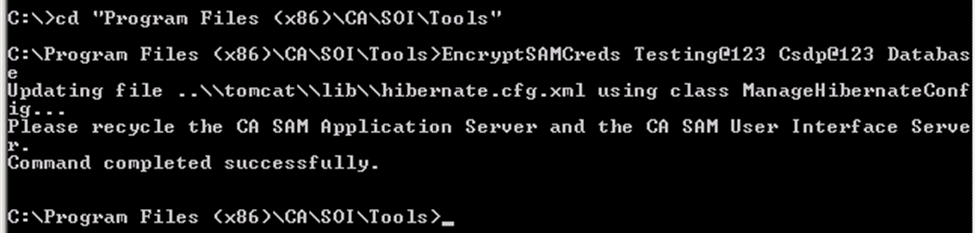
- Open the command prompt, navigate to SOI\Tools, and run the following command:
EncryptSAMCreds <old password> <new password> Database
This command updates the database password in all the necessary configuration files on the SA Manager system.
The following screen shot is an example:
- Restart the CA SAM Application Server and CA SAM User Interface Server services.
The database password is updated in CA Service Operations Insight.
Copyright © 2014 CA.
All rights reserved.
|
|