Previous Topic: Action AlertsNext Topic: Suppression and Summarization


Scheduled Reports

This section contains the following topics:

View a Generated Report

Annotate a Generated Report

Enable and Disable Scheduled Report Jobs

How to Schedule a Report Job

Example: Schedule Reports with a Common Tag

Example: Email Daily PCI Reports as PDFs

Edit a Scheduled Report Job

Enable and Disable Scheduled Report Jobs

Stop a Scheduled Report Job

Delete a Scheduled Report Job

Self-Monitoring Events

View a Self-Monitoring Event

View a Generated Report

You can view a generated report, or save a copy to a location of your choice. Generated reports are stored on the soft appliance with CA User Activity Reporting Module under the following path:

/opt/CA/LogManager/data/reports

To view a generated report

  1. Click the Scheduled Reports tab.

    The tab opens, displaying the local CA User Activity Reporting Module host by default.

  2. Select the server where the generated reports you want to view are scheduled.

    The server you select is displayed in the details pane.

  3. Click the Generated Reports tab if it is not already displayed.

    The Generated Reports List appears.

  4. Click the name of the report you want to view.

    The Save dialog appears.

  5. Click Save to specify a location to save the report.

More information:

Filter Reports

Annotate a Generated Report

Self-Monitoring Events

Filter Reports

You can set filters to refine the display of available generated reports and scheduled report jobs.

To filter generated or scheduled reports

  1. Select the report server where the scheduled or generated reports you want to filter are located, and click the Generated Reports or Scheduled Reports tab.

    The generated reports or scheduled reports list appears.

  2. Select the type of recurrence or format by which you want to filter the displayed reports, using the appropriate drop-down menus.

    The list shows the reports that meet your filter qualifications.

More information:

View a Generated Report

Annotate a Generated Report

Annotate a Generated Report

You can add annotations to a generated report, for purposes including report tracking or reviews.

To annotate a generated report

  1. Select the report server where the generated reports you want to annotate are located, and click the Generated Reports tab.

    The generated reports list appears

  2. Click the Annotations icon beside the report you want to annotate.

    The Report Annotations dialog appears, displaying any previous annotations with the name of their creator, and the time and date of their creation.

  3. Type the annotation you want, and click Save.

    The annotation appears in the dialog, which remains open to allow further annotations.

  4. (Optional) repeat step 3 to add additional annotations.
  5. Click Close when you have no further annotations to add.

    The Report Annotations dialog closes.

More information:

View a Generated Report

Filter Reports

Enable and Disable Scheduled Report Jobs

You can disable one or more scheduled report jobs when you no longer want the queries associated with that report to run. You can also enable scheduled report jobs that were previously disabled, so that they run according to the saved schedule.

To disable or enable scheduled report jobs

  1. Click the Scheduled Reports tab, and the Report Scheduling subtab,

    The Scheduled Jobs list appears, showing the status of each job in the Enabled column. If the job is enabled, the Enabled value is true. If it is disabled, the Enabled value is false.

  2. Select the job or jobs you want, and click Enable Selected, or Disable Selected.

    The Scheduled Jobs list displays the new status of all the jobs you enable or disable.

    Note: The ability to disable report jobs is designed for use with recurring reports. If you disable a report job with a single occurrence ("Once") it is removed from the Scheduled Jobs list.

How to Schedule a Report Job

The process of creating a report job, using the report scheduling wizard, has the following main steps:

  1. Opening the schedule report wizard.
  2. Selecting report templates - To begin scheduling a report job, select the report or tag you want to use as a template. You can select a single template or tag, or multiple templates or tags.

    Note: You can schedule a report targeted to an external ODBC database. To do so, first configure connections to any ODBC databases you want, and create queries and reports that target those databases. No ODBC queries or reports are provided with installation.

  3. Creating report filters - You can apply advanced event filters to customize your report returns further, as needed.
  4. Setting date range and result conditions - You can set the date range you want the report query to search and other conditions.

    Note: We recommend that you set the maximum number of rows size in scheduled reports to 75,000. If you want to increase the maximum number of rows size to 500,000 or more, schedule the reports in the CSV format and configure the heap size parameters in JVMSettings. For information about configuring the heap size parameters, contact CA Support.

  5. Scheduling jobs - Set the day and time that reports are run for both single-occurrence and recurring reports. You can also choose from the available recurrence patterns.
  6. Selecting a report format and destination - You can choose the report format you want and email delivery options.
  7. Selecting a server - Select the server that the report queries, and whether the query extends to other federated host. This step is not required for external ODBC reports.

Open Schedule Report Wizard

To create a new report job for one or more recurring reports, you must use the schedule report wizard.

To open the schedule report wizard

  1. Click the Scheduled Reports tab.

    The Report Servers list appears.

  2. Select the server where you want to schedule a report.

    The Report Server Details pane shows the selected server, displaying the Generated Reports tab by default.

  3. Click the Report Scheduling tab, and then click Schedule a Report.

    The Schedule Report wizard appears.

    When using the wizard:

More information:

Create an Advanced Event Filter

Set Scheduling Parameters

Choose Report Query Target

Select a Report Template

The first step in creating a report job is the selection of the report template. To schedule multiple report jobs that share the same filters, scheduling, and destination settings, select multiple reports or tags as templates.

If you select multiple reports, the jobs display separately by report. For example, if you select two different reports, they share the same scheduling and filter options, but are displayed separately, titled by the report name, in the Generated Reports list.

Users with the Administrator role can create report jobs in a disabled state for later use. User with the Administrator and Analyst roles can enable and disable jobs at a later time. Disabled reports display the value false in the Enabled column when viewing the Scheduled Reports tab.

To select a report template

  1. Enter a job name.
  2. Select the time zone you want to schedule the report in from the time zone drop-down menu.
  3. Select the target of your scheduled report using the Connection drop-down list. UARM Default appears in the drop-down list, along with the names of any ODBC connections set up in the Report Service area.
    UARM Default

    Targets your report to the internal event and incident databases.

    ODBC Connections

    Targets your report to an external ODBC table you select. The Table drop-down list appears, populated with the tables available in your chosen database.

  4. If you select an ODBC connection, select the table you want to target from the Table drop-down list.
  5. Select the Reports or Tags option button to select reports by tag or individually.

    Note: Scheduling reports by tag lets you add reports without altering the job itself. If you select the "Identity Management" Tag, any report with that tag is added to the job at the scheduled run time. This feature also applies to custom tags.

  6. (Optional) Select a tag or tags to narrow the tags and individual reports displayed. This feature matches the behavior of the Report List.
  7. (Optional) Clear the Enabled check box to create this report job in a disabled state. The Enabled check box is marked by default.

    Note: The ability to create a disabled report job is designed for use with recurring reports. If you create a disabled job with a single occurrence ("Now" or "Once") it is removed from the Scheduled Report list.

  8. (Optional) Select the Retain after expiry check box to retain the report configuration after the report is generated.

    Note: After the report is generated, you can edit the report template and reschedule the report.

  9. Select the tags or individual reports you want to use as report templates. Then use the shuttle control to add them to the Selected Reports area.
  10. Advance to the scheduling step you want to complete next, or click Save and Close.

    If you click Save and Close the report is scheduled, otherwise the step you select appears.

More information:

Tag Tasks

Create an Advanced Event Filter

Set Scheduling Parameters

Choose Report Query Target

Enable and Disable Scheduled Report Jobs

Set Scheduling Parameters

You can control when scheduled reports run, whether you want them to recur, and the recurrence interval.

To set scheduling parameters

  1. Open the Schedule Report wizard and advance to the Schedule Jobs step.
  2. Use the Non Recurring or Recurring radio buttons to select the report generation time and recurrence pattern you want, if any.

    Note: If you use daylight savings time in your environment, do not schedule a report during the changeover time, since it will not be generated. For example, if daylight savings time begins at 2 a.m. March 8, you cannot schedule a report between 2:00:00 and 2:59:59.

  3. Advance to the scheduling step you want to complete next, or click Save and Close.

    If you click Save and Close the report is scheduled, otherwise the step you choose appears.

More information:

Using Advanced Filters

Choose Report Query Target

Select Format and Notification Settings

You can select whether reports are generated in PDF, XML, Excel, or CSV format. You can also set up automatic email notification.

To set format and notification

  1. Open the Schedule Report wizard and advance to the Destination step.
  2. Select the format you want from the Report Format drop-down menu.

    Note: In PDF format, charts are limited to 100 data points, which keeps the chart axis labels clearly legible. If the chart you want to display contains more than 100 points, CA User Activity Reporting Module includes only the first 100 in the published PDF output.

  3. Select the Email check box if you want to send a notification when the report is generated.

    The email specification fields appear.

  4. Enter email addresses for any users you want to receive the notification. Separate multiple addresses using commas.
  5. (Optional) Enter any other specifications you want, including subject, return email address, and body text.
  6. (Optional) Select Attach Report to attach a copy of the report in your chosen format to the notification email.
  7. Advance to the scheduling step you want to complete next, or click Save and Close.

    If you click Save and Close the report is scheduled, otherwise the step you select appears.

More information:

Using Advanced Filters

Set Scheduling Parameters

Choose Report Query Target

Choose Report Query Target

You can choose which federated event log stores the report query searches.

To choose report destinations

  1. Open the Schedule Report wizard and advance to the Server Selection step.
  2. Select any available servers you want to query, and move them to the Selected Servers area using the shuttle control.
  3. (Optional) If you want to disable federated queries for this report, select "No" from the drop-down menu that appears when you click the Federated Queries entry. Report queries are federated by default.
  4. Advance to the scheduling step you want to complete next, or click Save and Close.

    If you click Save and Close the report is scheduled, otherwise the step you choose appears.

More information:

Using Advanced Filters

Set Scheduling Parameters

Example: Schedule Reports with a Common Tag

You can schedule one or more reports to be generated at the specified frequency with the specified end date.

Auditors, Analysts, and Administrators can schedule reports.

To schedule a report
  1. Click the Scheduled Reports tab, the Report Scheduling subtab, and then click Schedule a Report.

    SIM--ButtonScheduleAReport--SCR

    The Schedule Report wizard appears with Step 1, Report Selection, selected.

    SIM--ScheduleReport1--SCR

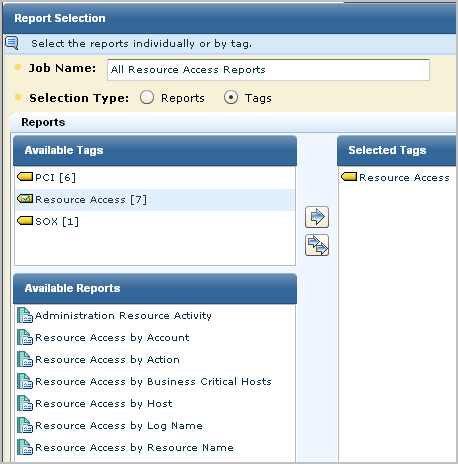
  2. Enter a job name, select Reports to enable selection of individual reports or select Tags to enable selection of all the reports associated with a selected tag.

    In the following example, selecting the Resource Access tags is an easy way to select the six reports with this tag.
    SIM--ScheduleReport2--SCR

  3. (Optional) Click Report Filters and create a new event filter to limit the report to the data you need.
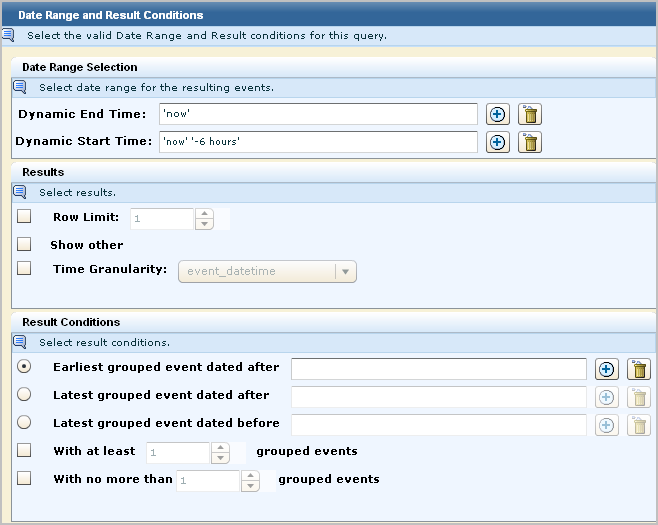
  4. (Optional) Click Result Conditions and select a date range and/or result conditions for this query. For example, to search for events that occurred within the last six hours, select 'now' as the dynamic end time and select 'now' and '-6 hours' as the dynamic start time. Select Row Limit and select a number, such as 250.

    SIM--ScheduleReport2a--SCR

  5. Click Scheduled Jobs to schedule the generation for Now or select another option and specify the details.
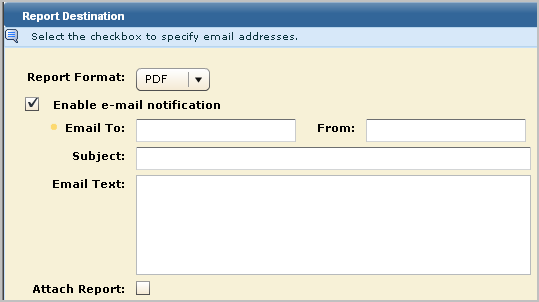
  6. Click Destination, specify whether to format the report as an Excel spreadsheet, a PDF, XML, CSV. A spreadsheet is appropriate for tabular data. A PDF is appropriate for graphics. Optionally, you can send an email notification. (Use the comma as a delimiter between email addresses.) The email can be sent without the report just for confirmation that the scheduled report was generated, or you can send the report as an attachment to the email.

    SIM--ReportDest--SCR

    Note: The Administrator can configure reports to be deleted after a specified retention period. Retaining an email copy may be used a backup alternative to manual archiving.

  7. Click Server Selection and select one or more severs for the reports and indicate whether to query the server's federation.
  8. Click Save and Close.

    The selected reports are scheduled for generation.

    SIM--ScheduleReport3--SCR

Example: Email Daily PCI Reports as PDFs

You can automate the delivery of specified reports in the format you choose to the person you specify at the required frequency.

Before you can specify that scheduled reports be formatted as PDFs and attached to emails, you must configure the following on the Global Service Configuration for the Report Server under the Administration tab and Services subtab.

Example: Deliver all daily PCI reports, as PDFs, to the auditor's inbox each weekday

  1. Click the Scheduled Reports tab and the Report Scheduling subtab.

    The toolbar appears with a Scheduling a Report button.

  2. Click Schedule a Report.

    The Report Selection step appears.

  3. Select a report as follows:
    1. Type PCI Reports as the job name.
    2. Select Tags as the selection type.
    3. Select PCI from Available Tags and move it to Selected Tags.
  4. Schedule the job as follows:
    1. Click the Schedule Jobs step.
    2. Select Daily under recurring.
    3. Select every weekday.
  5. Specify the report destination and format as follows:
    1. Click the Destination tab.
    2. Accept the default report format, PDF.
    3. Select Enable e-mail notification.
    4. Type the auditor's email address. Use the following syntax: <email_name>@<company>.com
    5. Select Attach Report.
  6. Click Save and Close.

Edit a Scheduled Report Job

You can edit a scheduled report job.

To edit a scheduled report job

  1. Click the Scheduled Reports tab.

    The Report Servers list appears.

  2. Select the server where the report you want to edit is scheduled.

    The selected server appears in the Report Server Details pane.

  3. Select the report job you want, and click Edit at the top of the list.

    The Schedule Report wizard appears.

  4. Perform the changes you want, and click Save and Close.

    The edited report appears in the Scheduled Jobs list within 5 minutes, as soon as the list refreshes. Click Refresh to display it immediately.

More information:

Delete a Scheduled Report Job

Enable and Disable Scheduled Report Jobs

You can disable one or more scheduled report jobs when you no longer want the queries associated with that report to run. You can also enable scheduled report jobs that were previously disabled, so that they run according to the saved schedule.

To disable or enable scheduled report jobs

  1. Click the Scheduled Reports tab, and the Report Scheduling subtab,

    The Scheduled Jobs list appears, showing the status of each job in the Enabled column. If the job is enabled, the Enabled value is true. If it is disabled, the Enabled value is false.

  2. Select the job or jobs you want, and click Enable Selected, or Disable Selected.

    The Scheduled Jobs list displays the new status of all the jobs you enable or disable.

    Note: The ability to disable report jobs is designed for use with recurring reports. If you disable a report job with a single occurrence ("Once") it is removed from the Scheduled Jobs list.

Stop a Scheduled Report Job

You can stop a scheduled report job if it takes a longer time to run.

Follow these steps:

  1. Click Scheduled Reports, Report Scheduling.
  2. Select the jobs that you want to stop, and click Stop Selected.

Delete a Scheduled Report Job

You can delete a scheduled report job.

To delete a scheduled report job

  1. Click the Scheduled Reports tab.

    The Report Servers list appears.

  2. Select the server where the report you want to delete is scheduled.

    The selected server appears in the Report Server Details pane.

  3. Click the Report Scheduling tab, select the job you want by clicking on the row, and click Delete at the top of the list. You can select multiple jobs for deletion.

    Note: The check boxes beside each report job are used for enabling or disabling report jobs.

    A confirmation dialog appears.

  4. Click Yes

    The report job is removed from the Scheduled Jobs list.

More information:

Edit a Scheduled Report Job

Self-Monitoring Events

Most user actions generate self-monitoring events. These events allow you to track which actions have been taken on or involving the server, and their success or failure. Self-monitoring events are displayed in Event Viewer format for each server on the Scheduled Reports and Alert Management tabs. They can also be accessed as normal or scheduled reports using the Self Monitoring Events report.

More information:

View a Self-Monitoring Event

View a Self-Monitoring Event

You can view relevant self-monitoring events for each server from the Alert Management and Scheduled Reports tabs. The views in each tab are filtered to display relevant alert or report monitoring events. You can remove the filter to display all self-monitoring events.

To view self-monitoring events

  1. Click the Scheduled Reports tab, or the Alert Management tab.

    The Report or Alert servers list appears.

  2. Select the server whose local self-monitoring events you want to view.

    The server you select is displayed in the details pane.

  3. Click the Self-Monitoring Events tab.

    The Self-Monitoring Events viewer pane appears, showing report or alert-related self-monitoring events. You can perform any of the normal reports tasks from the Self-Monitoring Events pane, including: