

Use the Filter function to narrow the list of objects displayed in the table. The Windows Client lists the object fields in the Filter window in alphabetical order by field name. The Filter dialog guides you in the process of defining the filter expression by enabling and disabling the appropriate fields and controls at every step. Click the top of the Description column to sort entries by description name. You can reverse the sort order by clicking again at the top of either column:
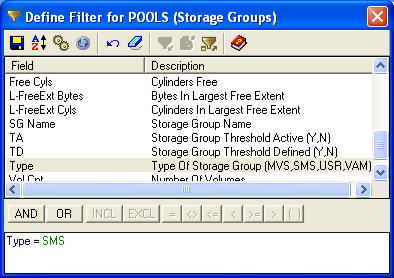
You can build a filter from the fields of the objects displayed in a window by combining them into Boolean expressions. In the case of volumes, for example, objects have fields such as Volume Name, Device Number, Device Type, Model Type, and so on. Filter expressions can contain patterns created with wild card characters.
Note: For more information about Wildcard Characters, see the section Wildcard Characters.
You can use single quotes to filter text strings with blanks or any values containing blanks. If blanks are a significant part of the substring, you can use double quotes rather than single quotes.
You can refine your filter by using the AND/OR logical operators to combine several expressions. You can also use parentheses to group sub‑expressions.
You can enter a filter expression directly into the text box at the bottom of the Define Filter dialog or use the typing aids in the dialog. You can edit any expression in the text box. You can also Insert an External Filter from the common global repository on the host. This function copies the selected filter expression from the external library into the Define Filter window at the position of the cursor, where you can use it as is or modify it. However, if there is no need to modify it, the better alternative is to just refer to it by its (class) name. To do this, use the Insert Class icon. Referring to an external filter by its (class) name avoids the unnecessary work of copying the complete filter expression from the host to the PC, just to send it back again unchanged. Referring to an external filter by its name also has the benefit that the filter expression in the external library can be of unlimited length (as long as there is memory to hold it).
Note: For more information, see the section z/SO External Filters.
You cannot create External Filters from any of the wizards (for example; the Summary Object Designer, the Automation Scripts Builder, the Log Scripts Builder, and so on). However, most wizards allow you to insert existing External Filters, that is, you have to first create the External Filter from the z/OS menu option External Filters/Classes or from the Filter option on the object menu.
Note: If you also want to sort your data, do not click Execute yet. First define your sort criteria by invoking the Sort dialog, then click Execute in the Sort dialog.
|
Copyright © 2013 CA.
All rights reserved.
|
|