

User Views › Object Menu Bar › View Menu › Defining a Filter › z/OS External Filters
z/OS External Filters
You can also save filters in a common global repository on the z/OS host known as the external filter/class library. Placing filters in this shared library makes them available for reuse by any user. Each shared filter defines a class for a specific object. Any user can copy (insert) a filter string from this library and use it, or simpler yet, they can simply refer to the external filter/class by its name. Any object views or User Views that contain filters that only refer to a filter/class name will automatically pick up the class changes whenever someone modifies the filter string that defines that particular class.
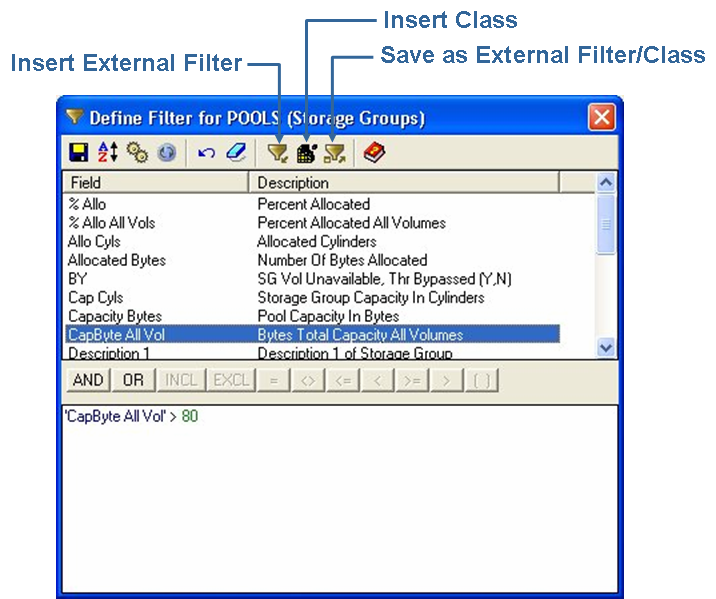
To create or add a filter to the z/OS external filter/class repository using the object Filter dialog
- From the Object menu bar click the Filter icon.
The Filter dialog is displayed.
- Define the filter as explained in the section Defining a Filter.
- Click Save as External Filter/Class on the Filter dialog toolbar, as shown in the above example. This displays the Save External Filter/Class As dialog.
- Enter a name and description:
- The Filter Name can be a maximum of eight characters.
- The Filter Name must be unique.
- The Description can be a maximum of 28 characters.
Observe the following:
- You can also create a new External Filter/Class from the z/OS menu option External Filters/Classes. The only way to modify an existing External Filter/Class and delete an existing External Filter/Class is by using the External Filters/Classes Manager.
- You cannot create External Filters from any of the wizards (for example; the Summary Object Designer, the Automation Scripts Builder, the Log Scripts Builder, and so on). However, most wizards allow you to insert existing External Filters. The point is, you have to first create the External Filter from the z/OS menu option External Filters/Classes or from the Filter option on the object menu before you can insert it using one of the wizards.
To refer to a filter by its External Filter/Class name
- From the Object menu bar click the Filter icon.
The Filter dialog is displayed.
- Optionally, create a filter string using the standard procedure.
- Click in the filter expression window where you want the Class name inserted. You can insert Classes anywhere in the filter string and it becomes part of the string.
- Click Insert Class on the Filter dialog toolbar to display the list of External Filter/Class names available for your object.
- Click the desired External Filter/Class name you want to use, and the reference to the Class name is copied into the filter dialog window.
- You can repeat steps 2 to 5 to meet your needs. Observe the following:
- A z/OS filter expression can have a maximum of about 1900 characters.
- You cannot modify the filter string of an inserted Class from the filter expression window.
- If you save the object view with the Class name inserted in the filter and a user modifies the Class in the External Filter/Class library, then the Class modification can affect the object view the next time it is activated.
To import a filter string from the External Filter/Class library, instead of just referring to it
- From the Object menu bar click the Filter icon.
The Filter dialog is displayed.
- Optionally, create a filter string using the standard procedure.
- Click in the filter expression window where you want the External Filter inserted. You can insert External Filters anywhere in the filter string and it becomes part of the string.
- Click Insert External Filter on the Filter dialog toolbar to display the list of External Filter/Class names available for your object.
- Click the desired External Filter/Class name you want to use, and its filter string is imported into the Filter dialog window.
- You can repeat steps 2 to 5 to meet your needs. Observe the following:
- A z/OS filter expression can have a maximum of about 1900 characters.
- You can modify the External Filter's filter string after it is displayed in the filter expression window without effecting the filter string in the External Filter stored in the External Filter library.
- If you save the object view with the External Filter expression imported in the filter and a user modifies the External Filter in the External Filter/Class library, then the External Filter modification is not carried over to your object filter and the modification does not affect the object view the next time it is activated.
Copyright © 2013 CA.
All rights reserved.
|
|