

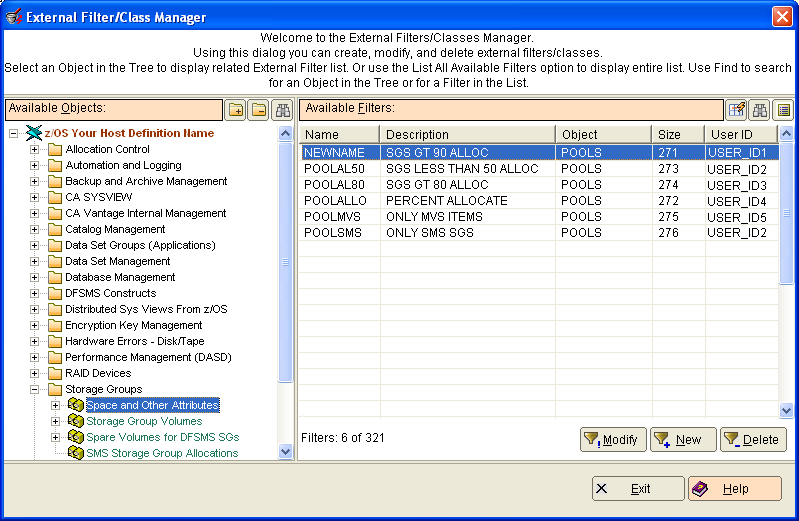
Use the External Filter/Class Manager to add, modify, or delete External Filters/Classes. The External Filter/Classes Manager option is located in the z/OS menu.
Note: You can also use the object Filter option to save an object filter as an External Filter. For more information, see the section Defining a Filter.
Filters let you specify, in detail, the type of data you want to gather. You can save filters in a common global repository on the host (the External Filter Library) and make them available for reuse by any user, these are referred to as External Filters/Classes. To apply an External Filters/Class you refer to it in a standard filter.
Note: For an overview of the External Filters that exist in the External Filter Library on a host, display the External Filters object located in the System Activity subfolder in the CA Vantage Internal Management folder of the host's Object Tree.
When adding a new External Filter/Class or editing an existing External Filter/Class basically the same options apply as building a standard object filter and when you apply a standard filter to an object view you transmit the filter from the PC to the z/OS host. When you create an External Filter it is stored on the host. You can refer to External Filters in two ways using icons on the toolbar in the object Filter dialog:
 - Insert External Filter
Lets you select and insert an External Filter's filter string from the External Filter library which is applicable to the current object displayed. When you select an External Filter using this option, the External Filter's filter string is copied to the filter string area of the Filter dialog. You can then change the copied External Filter filter string without effecting the External Filter's filter string in the External Filter library. Observe the following:
 - Insert Class
Lets you select and insert an External Filter's reference Class name of an External Filter from the External Filter library which is applicable to the current object displayed. When you select an External Filter using the Insert Class option, the filter expression simply refers to it by its Class name, instead of copying the actual filter string into the Filter dialog. Observe the following:
Observe the following:
For more information about External Filters and Classes, see the Help topic External Filters. This Help topic advises you on creating long (or short) filters and saving them in the external filter library. You should also review the sections External Filter Member Syntax, Filter Syntax Rules, and Filter Lengths in the CA Vantage SRM Reference Guide. The following is a sample of the External Filters/Class Manager dialog:
|
Copyright © 2013 CA.
All rights reserved.
|
|