

Use the Host Definition dialog to add a new z/OS host definition.
You can start the Host Definition dialog the following ways:
The following shows a sample Host Definition dialog with a z/OS host definition:
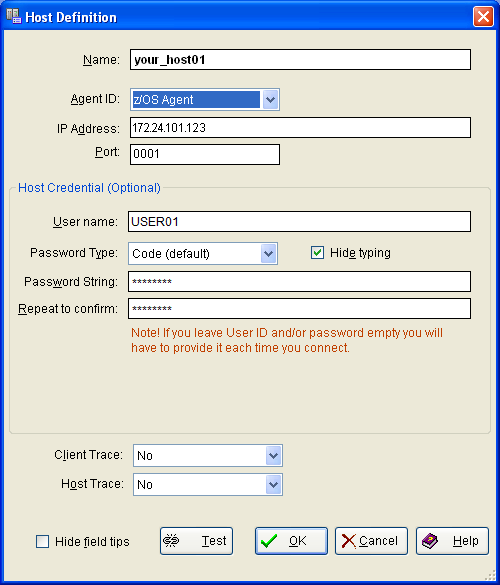
The Host Definition dialog displays all of the parameter settings for that specific host. You can modify any of the parameters with this dialog.
To change an existing host definition, do one of the following:
The user ID and password defined in the host definition are for the login to the z/OS host. That is, the ID and password known to the z/OS Security System. Do not confuse these with the optional user ID and password for starting the Windows Client itself.
Note: For more information about adding hosts, see the section Host List View.
The Windows Client retains existing host definitions from version to version. If you have defined hosts with a previous version of the Windows Client and then upgrade, all your hosts still display in the Host List window. If you click Host List in the Client menu, the list of the defined hosts for the Windows Client opens. The following is an example of the Host List window:

The connection symbol to the immediate left of the host name in the Host List window visually shows you the connection status between the Windows Client and the host.
The following table describes the connection symbols in the Host List window and what they mean:
|
Symbol |
Explanation |
|---|---|
|
|
Not connected to the host |
|
|
Connecting to the host |
|
|
Connected to the host |
|
Copyright © 2013 CA.
All rights reserved.
|
|


