

Use the External Filter/Classes Manager to add a new external filter.
Note: You can also use the object Filter option to save an object filter as an External Filter. For more information see the section Defining a Filter.
To create a new external filter using the External Filter/Classes Manager
You are connected to the Host and that Host is highlighted in the Host List.
The External Filters/Classes Manager dialog is displayed.
Note: The New icon is enabled only when an object is selected in the Available Objects pane.
 ).
).
The External Filter/Class - New Name dialog is displayed, as shown in the following example:
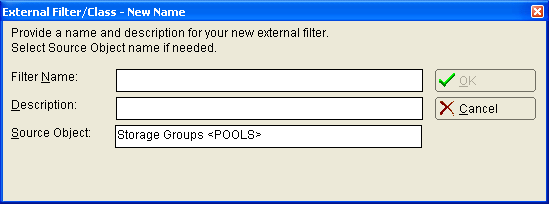
Observe the following:
The External Filter/Class dialog is displayed. The External Filter/Class dialog shows the new external filter name in the title bar. The following is an example of the External Filter/Class dialog where we are creating a new external filter with the name NEWNAME for the source object POOLS:
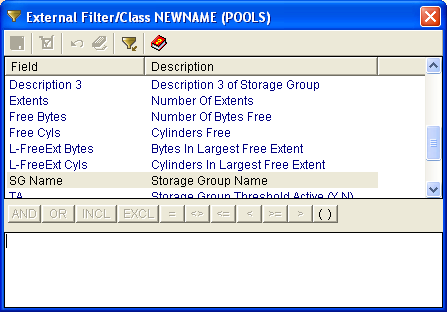
Note: For more information about filter expressions, see the section Defining a Filter.
The following is an example of the External Filter/ClassManager dialog with a filter expression of % Alloc greater than or equal to 80:
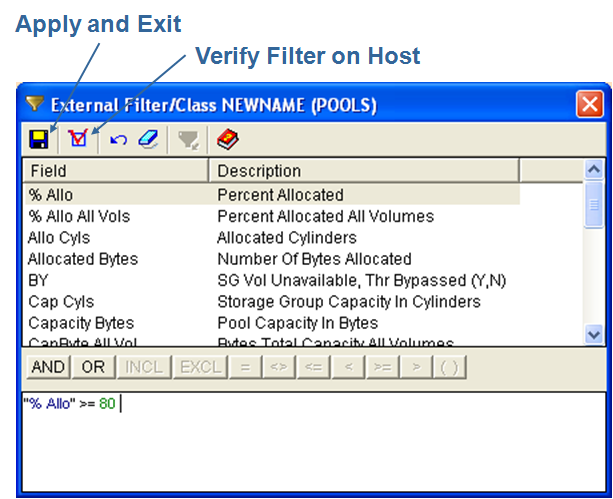
After the filter is saved, the External Filter/Class dialog closes and a confirmation dialog is displayed.
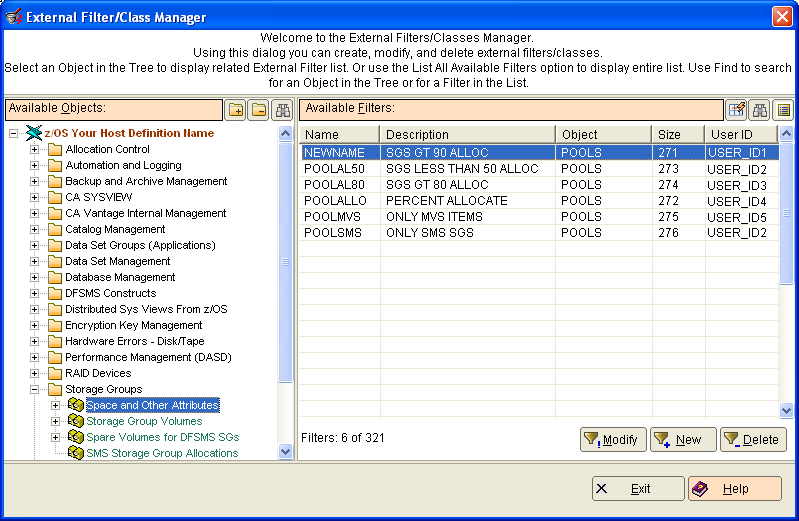
The confirmation dialog closes and the External Filters/Classes Manager dialog displays with the new external filter listed. The following is an example of our NEWNAME external filter now listed in the External Filters/Classes Manager dialog for the Storage Group's Space and Other Attributes (POOLs) object:
|
Copyright © 2013 CA.
All rights reserved.
|
|