This chapter describes CA Repository Webstation Option objects, concepts, and tasks that are performed by the system administrator on the mainframe to manage the repository objects.
|
This section contains the following topics: Topic and Category Maintenance |
CA Repository Webstation Option uses two metadata models: the Control model and the Category Builder model.
For complete information about repository object types and metadata models, see the Metadata Models Reference Guide.
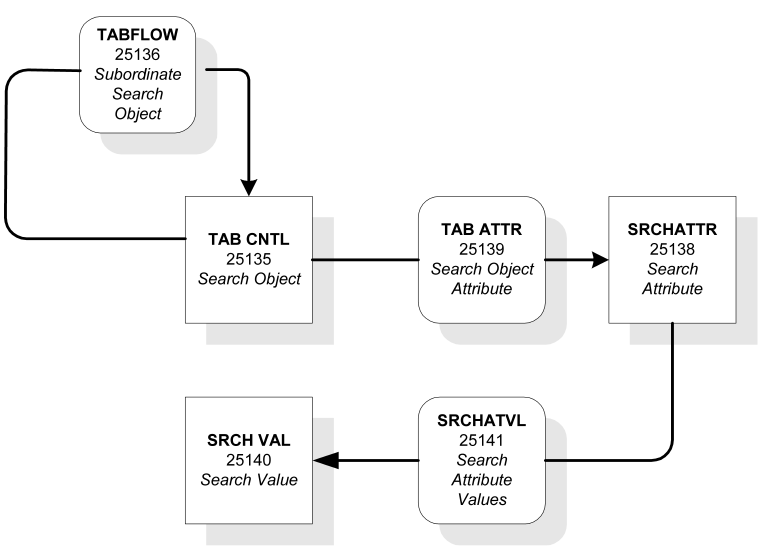
The CA Repository Webstation Option Control model is shown in the following illustration. The Control model enables CA Repository Webstation Option to be fully extensible.
You can observe the following in this illustration:
For instructions on how to create search objects, see Search Object Maintenance.
Topics and Categories are two distinct repository object types that are used by CA Repository Webstation Option. The Category Builder model (shown in the following illustration) lets you perform the following tasks:
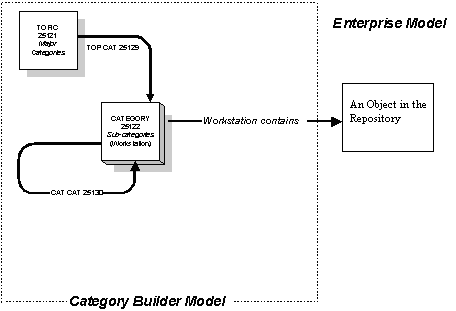
You can observe the following in this illustration:
For instructions on how to create topics and categories and how to define the hierarchy within categories and subcategories, see Topic and Category Maintenance.
CA Repository Webstation Option executes SQL queries against the repository to retrieve the search objects, its attributes, and its set of allowable values. However, there are some differences depending on whether the query was initiated with the Finder search or with the Topics and Categories search.
Using Finder search you can perform a simple search or, specify filter criteria to fetch specific details about a search object. When you execute a query from Finder, CA Repository Webstation Option retrieves search objects, their attributes, and the set of allowable values. The search object appear as a list. The query also retrieves the repository text that contains the impact analysis query that can be executed by the user.
The actual query that is executed is retrieved from the DBX_TEXT_1 table where the row is associated with the ID of the search object.
The text contains a question mark (?) to indicate where the user-specified WHERE clause is inserted to create the query that will be executed. There can be multiple question marks in the search object. Each one is substituted with the same partial WHERE clause.
For more information about queries, see Repository Queries and their Usage.
For a Topics and Categories search, CA Repository Webstation Option executes SQL against the repository to get the Topics and Categories objects, its attributes and its set of allowable values. It also retrieves the repository text that contains the impact analysis query. When you select a category object, the pre-defined query is executed, and a result set is retrieved.
The Topics and Categories panel lets you work with the following:
For more information, see Topic and Category Maintenance.
CA Repository Webstation Option retrieves data from the repository by using search objects. A search object consists of a pre-defined SQL query that can be executed against data within the repository. When the pre-defined SQL query executes it accesses a set of repository tables and displays a result set.
CA Repository Webstation Option supplies a set of search objects when it is installed; however you can also create your own search objects. Search objects are typically defined by your CA Repository administrator. There is no limit to the number of search objects that can be created. Here are some examples:
For samples of search object queries, see Query Examples.
Search objects can contain one column that can be used to launch other tools. For information about how to configure this feature, see Launch Tools.
By assigning search objects to group profiles, you can control which search objects are available to CA Repository Webstation Option users, effectively limiting access to the data grouped under those search objects. For more information about group profiles, see the section Group Profile Maintenance.
The SQL queries for the pre-defined search objects are stored in the pre-defined CA Repository Webstation Option Control Tables. For samples of search object queries, see the section Query Examples.
Search objects are part of a Finder search and Topics and Categories searches used by CA Repository Webstation Option end users when they search repository data:
Search objects are used in both Finder searches and Topics and Categories searches. Each search object represents a pre-defined query that accesses a set of repository tables and displays a result set to the user.
In addition to a set of pre-defined search objects supplied with CA Repository Webstation Option, you can also create your own search objects. Search objects are typically defined by your CA Repository administrator. There is no limit to the number of search objects that can be created. Here are some examples:
For samples of search object queries, see the section Query Examples.
Search objects can contain one column that can be used to launch other tools. For information about how to configure this feature, see Launching Tools later in this chapter.
By assigning search objects to group profiles, you can control which search objects are available to CA Repository Webstation Option users, effectively limiting access to the data grouped under those search objects. For more information about group profiles, see Group Profile Maintenance.
Search objects are defined in the mainframe repository. The CA Repository Webstation Option administrator defines search objects by inserting an instance into the TAB CNTL entity. After creating a search object, you need to secure it within the external security manager (ESM) product in use at your site. For information about security considerations on search objects, see External Security and External Security Implementation within an ESM in chapter "Implementing Security."
Search objects that query tables which do not reside in the repository associated with CA Repository Webstation Option, or are not in any repository at all, are allowed. However, the ability of users to edit text on those other tables must be suppressed. This is accomplished by updating the search object. For more information about suppressing text update for a search object, see Edit Objects on the Query Results Panel.
Note: These instructions assume that you are familiar with commands and dialogs in CA Repository Webstation Option, and know how to create control data.
To create a search object
to Select CA Repository CLIST, ARZOS, dialog SHOPCNTL, entity type TAB CNTRL.
The SHOPCNTL dialog opens.
A new search object is defined.
For a description of the fields, see the TAB CNTL entity description in Model Entity and Relationship Control.
For information about search objects that query text, see Extended Text as Search Objects.
Search attributes are defined for the new search object.
Relationship is defined for the new search object.
The attribute values and relationship for each search value is defined.
The new search object is created.
Important! After creating a search object, you need to secure it within the external security manager (ESM) product in use at your site. For more information about security considerations on search objects, see Implement External Security within an ESM in the chapter "Implementing Security."
The following information describes each of the entities shown in the Control Model. You use the SHOPCNTL dialog in CA Repository to maintain search objects.
|
Entity |
Description |
|---|---|
|
TAB CNTL |
Each instance of TAB CNTL represents a search object. |
|
TABFLOW |
Each instance of TABFLOW represents the navigation between two search objects. |
|
SRCHATTR |
Each instance of SRCHATTR represents an attribute that can be used to build the Finder Search Criteria panel. |
|
TAB ATTR |
Each instance of TAB ATTR connects a search attribute to the appropriate search object. All SRCHATTR fields for a TAB CNTL appear in the attribute section of the Finder Search Criteria panel. |
|
SRCH VAL |
Each instance of SRCH VAL represents an allowable value that can be used to build the search criteria in the Finder Search Criteria panel. |
|
SRCHATVL |
All SRCH VALS for a SRCHATTR appear in the drop-down list of values when the search attribute is selected in the Finder Search Criteria panel. |
The objects used by the CA Repository Webstation Option administrator to extend its capabilities are described in the following table.
|
Entities/ Relationships |
Definition |
|
|---|---|---|
|
TAB CNTL |
Extensibility of CA Repository Webstation Option is controlled by an entity type called TAB CNTL. The types of objects that can be searched are dependent on data residing in the repository in this entity. Note: Search objects are defined by inserting an instance into TAB CNTL. For more information, see Search Object Creation. TAB CNTL contains uses the following columns to define a search object: |
|
|
|
Tab Title |
The name of the search object as it will appear in the Webstation Option Search Objects panel. Search objects are sorted by Title Name. |
|
|
Search Object Type |
Specifies whether this search object can be invoked directly from one of the following locations:
Valid values are:
|
|
|
Launch Column |
Contains the alias name of the column in the select statement that contains a launchable address. When a user clicks the link returned from the execution of the search object, the object specified in the launch column is launched. For information about implementing a launch column, see Launch Tools. Note: A search object can contain only one launchable column. |
|
|
Process Detail |
Specifies whether detail and text processing is allowed for the result set. For more information, see Edit Objects on the Query Results Panel. Valid values are: Y–Text processing is allowed N–Text processing is not allowed Note: You must specify N if the search object result is outside the bounds of the repository. |
|
|
Description |
Contains a short description of the search object. |
|
TAB FLOW |
Represents a relationship between a higher-level search object in TAB CNTL and lower-level search objects in TAB CNTL. This object defines the hierarchy of search objects. TABFLOW defines the drill-down impact analysis path. Flow controls are defined by inserting an instance into TABFLOW. The Sequence number attribute defines the sort order of lower-level search objects in the CA Repository Webstation Option Search Objects panel. |
|
|
SRCH ATTR |
Finder allows a user to build custom search criteria. The attributes used to build the search criteria are defined in the entity type SRCHATTR. Note: A search attribute is defined by inserting an instance into SRCHATTR. SRCHATTR contains the following columns used to define a search attribute: |
|
|
|
Attribute Type |
The data type of the search attribute. The data type can be one of the following types:
|
|
|
Column Name |
The DBMS column name of the search attribute. The column name is passed to the DBMS as part of the Finder query. |
|
|
Alias Name |
The name appears in the Attributes column of the Search Criteria panel in Finder. For example: A search object from Programs is available from Finder. An instance of SRCHATTR exists for the program name. The attribute type is C for Character. The column name is PGM_NAME. The alias name is Program Name. A user does not need to know the underlying structure of the Repository tables. |
|
TAB ATTR |
Represents a relationship called TAB ATTR between a search object in TAB CNTL and a search attribute in SRCHATTR. This object defines the attributes that a user can use to build custom search criteria. TAB attributes are defined by inserting an instance into |
|
|
SRCH VAL |
Finder allows a user to build custom search criteria. A set of values for a search attribute can be defined to aid the user in building their search criteria. The values are defined in the entity type SRCH VAL. Note: A search value is defined by inserting an instance into SRCH VAL. SRCHATTR contains the following columns used to define a search value: |
|
|
|
Search Value |
Contains the value as it appears in the DBMS table. This value may be passed to the DBMS as part of the search criteria. |
|
|
Value Alias |
The value that displayed to the user. For example: A search object for Programs is available from Finder. One of the search attributes is Language. A set of values exists for Language. The search value is C. The Value alias is COBOL. A user can build search criteria using the alias names without needing to know the data in the underlying repository table. |
|
SRCHATVL |
The Search Attribute Value object is a relationship called SRCHATVL between a search attribute in SRCHATTR and a search value in SRCH VAL. This object defines the set of values that appear in the drop-down list of values in the Attribute Values column for the selected attribute on the Search Criteria panel in Finder. A value for a search attribute is defined by inserting an instance into SRCHATVL. The Sequence number attribute defines the order in which values appear in the list of values in the Attribute Values column. Note: If there are no search values for the selected search attribute, the drop-down list is disabled. |
|
Text queries are defined in the repository as search objects with a Search Object Type (Mainline) of T. These search objects are used in the text report. A list of text objects both global and local will be displayed in the Select Report Criteria pane. A user can select one or more of the text types for inclusion in the text report.
To make a text search object global, the text search object must have a search object type of T (as specified in the Search Object Type in TAB CNTL) and cannot be related to any other search object through the TABFLOW relationship.
Text search objects are local when they are associated with specific search objects through the TABFLOW relationship.
You can select multiple rows from the query result page and generate List report that allows you to see detailed information about the selected rows or elements.
The table report displays context-sensitive information about repository tables and where they are used in the repository. It is used by repository administrators to generate detailed reports on repository tables.
The table report displays detailed information on underlying tables, for example, table schema, database, index information, and foreign key information. Therefore, you must have access rights for DB2 tables to generate this report.
To remove a search object from CA Repository for z/OS Webstation Option while keeping it in the repository, change the Search Object Type in TAB CNTL to any character except C, F, N, T or R. We recommend Z as CA may add new object types at a later time that may conflict with the value you set. The character Z will not be used in the future for search objects.
The Topic/Category search consists of two object types, Topics and Categories, which are unique to CA Repository Webstation Option. The objects in the Category Builder model control what information is displayed to the CA Repository on Option end user for a Topic/Category search.
TOPIC and CATEGORY entities define the top-level topics and subordinate tree folders that users see in a drill-down search using CA Repository Webstation Option. The Repository administrator typically defines these entities, and therefore the contents of your folders.
For more information about using workstations, see the User Guide.
Topics are defined in the mainframe repository. The Repository administrator defines topics by inserting an instance into the TOPIC entity. After creating topics, the administrator creates categories and subcategories, and then creates associations between the topics and categories and the categories and any subcategories.
Note: These instructions assume the reader is familiar with commands and dialogs in CA Repository, and knows how to create control data.
Topics allow you to organize repository data effectively and are easily accessible to the end user. You can create new topics to contain category and subcategories. The end user can then search for specific category and subcategories within each topic.
Note: These instructions assume that you are familiar with the commands and dialogs in CA Repository, and know how to create control data.
To create a topic
View.Dialog SHOPCNTL;View.Type TOPIC
View.Type TOPIC panel appears.
|
Field |
Description |
|---|---|
|
Topic Name |
Specifies the name that appears on the top-level folder icon in the Webstation Option Topics and Categories panel. |
|
Status, Version |
The status and version number of the instance. |
|
Business Name |
(Optional) The official name of the topic as it is known within your organization. |
|
Description |
(Optional) Brief description on the topic instance. |
The topic is created.
You can now create categories and subcategories, and associate them to the topics you have created.
Categories and subcategories are defined in the mainframe repository. As Repository administrator, you need to define a category by inserting an instance into the CATEGORY entity. To define a subcategory, you need to create relationships between a higher-level category and lower-level categories.
In some cases, you may not need to create categories. For example, you can create a topic to display workstations. The end users will then be able to view the topic but not select any data within the topic.
Note: These instructions assume the reader is familiar with commands and dialogs in CA Repository, and knows how to create control data.
To create a category
For example, issue the command View.Dialog SHOPCNTL;View.Type CATEGORY.
|
Field |
Description |
|---|---|
|
Category Name |
Specifies the name that appears on the lower-level folder icon in the CA Repository Webstation Option Topics and Categories panel. |
|
Status, Version |
The status and version number of the instance. |
|
Business Name |
(Optional) The official name of the category as it is known within your organization. |
|
Description |
(Optional) Brief description on the category instance. |
The category is created.
A subcategory is a category, which is associated with a higher-level category. In case your data structure requires it, you can create subcategories or use existing categories as subcategories.
To create a subcategory
Or
Identify the existing category that you want to use as subcategory.
The subcatgory is created.
You need to create an association between the category and the topic that contains the category. Unless it is associated with the topic the end users will not be able to search for it.
To associate category with topic
| Copyright © 2009 CA. All rights reserved. | Email CA about this topic |