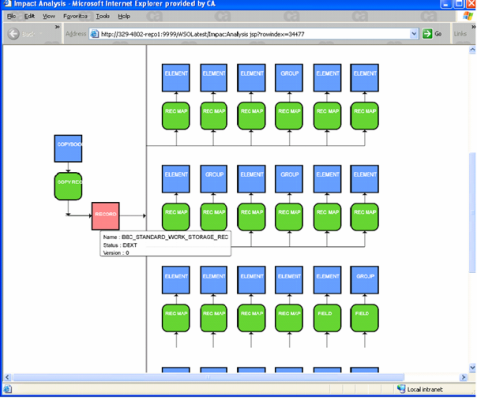
When you request Impact analysis by selecting an object from the result set, the program calls a stored procedure, passing the entity ID of the selected object as input to fetch the source and target ID for the selected object. It then displays the output in the form of a diagram.
The graphical impact analysis is displayed using a SVG (Scalar Vector Graphic) diagram. An object consists of entity, relationship and associations, and each object has a unique entity ID. The entity name, status, and version of each object is displayed as a tool tip when you mouse-over the object.
The diagram is expanded to show the object and its associations, and the selected object becomes the root object for the new result set. When you select an object in the diagram, the graphic expands to display further details. The selected object also appears as a highlighted list item in the Impact Analysis page. As a result, you are always aware of the current selection, even when you are browsing through different entities in the graphical browser. If an SVG diagram has been generated for the selected entity, the diagram will not be created again by clicking on the entity and no changes can be observed.
Note: You must install SVG Viewer to view the SVG diagrams. In Firefox browser the Impact Analysis is displayed in the tabular form and not in SVG.
In the SVG diagram, rectangular boxes represent repository entities, rounded rectangles represent repository relationships. The arrow connecting two entities represents an association.
A sample impact analysis appears as shown in the following illustration:
You can also select an object in the SVG diagram and request dependency details in a tabular format. The tabular format for impact analysis is produced using a browser called Dependency Browser.
Note: Impact analysis is available for all search objects. Whenever there is an impact of one search object on another search object, an SVG diagram will be displayed.
Dependency browser is a user-friendly, 508-compliant interface that allows you to trace the dependencies for the selected object and present the result in a tabular form. When you select Dependency Browser from Impact Analysis browser, it traverses through the entire object library, parsing all dependencies of the selected object and presents them in another instance of the browser in a tabular form. You can also right-click any data in the table to see detailed data. The detailed data is shown in another instance of browser in a tabular form.
When you click a specific item in the tabular data, the dependency browser refreshes to display detailed information about the selected item.
The Impact analysis browser, and the dependency browser remain synchronized, so that any action in the graphic also causes the same action in the dependency browser, where the selected object appears in a tabular form.
For more information about how to perform impact analysis, see Perform Impact Analysis in the CA Repository Webstation Option help.
Allows you to query on multiple repository objects and generate reports. The repository administrators can use it to generate various types of reports on repository objects such as: Table Reference Report and Object Reference Report. You can access global reports from the main menu and select multiple rows to generate reports on tables, objects, and dialogs stored in the repository. Global reports are context-sensitive and do not require input parameters to be passed to generate a report.
Note: The user accessing global reports needs to have access rights for the DB2 databases.
The Object Reference report displays information on the selected repository objects and the underlying entities, associations, and relationships based on the selected objects. It is used by repository administrators to build queries and reports for the repository. All users having access to the underlying DB2 tables can access the object reference report.
The report is displayed in a pop-up window. You can see the following fields in an Object Reference report:
For more information about Object Reference Report, see Create an Object Reference Report in the CA Repository Webstation Option Help.
This report will display information about repository tables. It is used by repository administrators to generate reports on repository tables. The Table Reference report helps you know where the selected tables are used in the repository.
You can access multiple rows for your report. All users having access to the underlying DB2 tables can access this report. You can see the following fields in a Table Reference Report:
For more information about Table Reference Report, see Create a Table Reference Report in the CA Repository Webstation Option Help.
A profile in CA Repository Webstation Option specifies which search objects and topics appear to the CA Repository Webstation Option end users when using a Finder search or a Topics and Categories search.
There are two types of profiles—user profiles and group profiles:
User profiles are available through CA Repository Webstation Option, and appear to the user on the Profile Administration menu under My Profiles.
Group profiles are available on Profile Administration menu under Group Profiles.
Information for both types of profiles is maintained in tables that reside on the mainframe, outside of CA Repository Webstation Option.
After an end user logs on to CA Repository Webstation Option and sets the profile to use (choosing either a group or user profile), that profile name is saved in a cookie on the client PC running CA Repository Webstation Option. The actual contents of the profile are stored in a repository table on the mainframe. The next time the user logs on to CA Repository Webstation Option, it uses that cookie to remember the user and uses the last profile setting.
When no cookie is detected on a computer when the CA Repository Webstation Option is started, CA Repository Webstation Option sets a profile NO PROFILE for that user. If default profile is not set, you can set the profile as No PROFILE by selecting Clear Profile Cookie, which contains a generic list of search objects and topics that you are allowed to view and chose from, based on security. For complete information about securing search objects and topics with external security, see the chapter "Implementing Security."
When accessing CA Repository Webstation Option, if users are going to share user IDs or use the generic user ID defined in the WSO server configuration file, WSOServerProperties.xml, to automatically log in, all users using that User ID can access the same user profiles. This means that any of those users can edit and delete any of the user profiles. In this case, the Repository administrator should consider setting up group profiles to prevent all users from updating the same user profiles.
For more information about setting up group profiles, see Group Profile Maintenance. For more information about login methods, see the chapter "User Login Implementation."
There are two tables that control the profile information. Both tables reside on the mainframe but are not maintained as CA Repository Webstation Option metadata tables:
These tables are described in detail in the following sections.
Typically the Repository administrator maintains the profile tables. As more users create user profiles, the Repository administrator should periodically clean up the DBX_USER_PREF and DBX_USER_GROUP tables by deleting any obsolete information from these tables. This task can be done using standard DB2 tools.
The user profile table is what actually defines which search objects and topics are made available to the end user. Each profile instance in the user profile table (DBX_USER_PREF) is described as follows:
|
Attribute Type |
Data Type |
Description |
|---|---|---|
|
USERID |
Character(30) |
User ID of the person administering the user profile. |
|
PROFILE_NAME |
Character(60) |
The name of the user profile. |
|
FUNCTION_TYPE |
Character(2) |
The type of object stored in the user profile. Values:
|
|
OBJECT_ID |
Integer |
Entity ID of the search object or topic. |
|
SEQ_NUM |
Integer |
A sequence number to display the sort order. |
|
MOD_TIME |
TIMESTAMP |
The date and time the profile was modified. |
The group profile table does not contain the search objects or topics for categories. Instead, it defines who can access information in an existing user profile, by connecting information in the group profile table with matching information in the user profile table.
Each instance in the group profile table (DBX_USER_GROUP) is described as follows:
|
Attribute Type |
Data Type |
Description |
|---|---|---|
|
USERID |
Character(30) |
Defines the User ID that can access this group profile. |
|
GROUPID |
Character(30) |
Must match a User ID found in the DBX_USER_PREF table. This value, along with the GROUP_PROF_NAME, is used to define a group profile. |
|
MOD_TIME |
TIMESTAMP |
The date and time the profile was modified. |
|
GROUP_PROF_NAME |
Character(60) |
Must match a PROFILE_NAME found in the DBX_USER_PREF table. The User ID is the DB2 User ID of the CA Repository Webstation Option user. This value, along with the GROUPID, is used to define a group profile. |
Use the CA Repository Webstation Option client interface to maintain user profiles.
Any CA Repository Webstation Option end user can create, edit, and delete user profiles. For complete instructions, see the CA Repository Webstation Option online help.
The CA Repository Webstation Option administrator uses SQL and any DB2 tool on the mainframe to maintain group profiles in the DBX_USER_GROUP table.
Any user profile can be turned into a group profile by inserting rows into the DBX_USER_GROUP table. Each row in table DBX_USER_GROUP represents a user and the associated group profile they can access. The following attributes in the DBX_USER_GROUP table are what associate the group profile to the user profile:
Creating a group profile is done using CA Repository Webstation Option to first create a user profile, and then using DB2 tools on the mainframe to edit the group profile table to create the group profile.
Creating a group profile is done using CA Repository Webstation Option to first create a user profile, and then using DB2 tools on the mainframe to edit the group profile table to create the group profile:
To create a group profile
For example, the user ADMIN01 signs on to WSO and creates a profile called End_User
For more information about creating a user profile, see Create a User Profile in the CA Repository Webstation Option online help.
For example, the USERID is set to GROUP1.
UPDATE DBX_USER_PREF
Set USERID = 'GROUP01'
Where USERID = 'ADMIN01' and profile_name = 'End_User'
The group profile is created and the user ADMIN01 is assigned to the group GROUP1.
As Repository administrator, you can use DB2 tools on the mainframe to define the relationship between user profile and group profile.
To define the relationship between user profile and group profile
INSERT INTO DBX_USER_GROUP
Values ('USER01', 'GROUP01', 'CURRENT_TIMESTAMP', 'End User')
The insert permitted the user ID USER01 to use profile End_User created by group GROUP01.
User USER01 is now able to set the End_User profile as the current profile within CA Repository Webstation Option. However, USER01 cannot edit the group.
By assigning topics and categories to group profiles, you can control which search objects are available to CA Repository Webstation Option end users, effectively limiting access to the data grouped under those topics. For more information about group profiles, see Profiles and Group Profile Maintenance.
| Copyright © 2009 CA. All rights reserved. | Email CA about this topic |