

The content administrator reviews the pending tasks in the All Tasks pane to identify any task that has not yet been delegated or assigned.
Typically, a content administrator assigns tasks to a group composed of users who handle a specific type of request. The content administrator can view the pending task to determine whether it has already been delegated or assigned. Delegated and assigned tasks are displayed with a list of delegated or assigned users or groups.
The task property lets you view the delegates and assignees as shown in the following illustration:
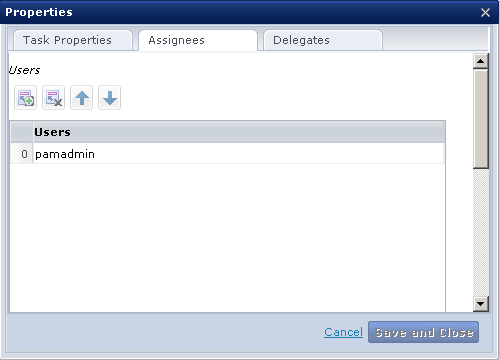
Click the  icon under Assignees from CA Process Automation to view the assigned users or group:
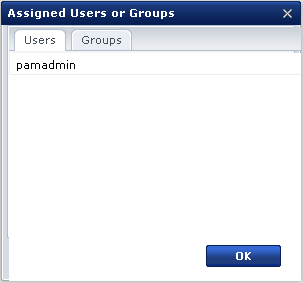
The Delegates Users or Groups dialog is similar to the Assigned Users or Groups dialog. If the task is assigned to the wrong group, transferring that task typically follows viewing.
Follow these steps:
CA Process Automation dashboard opens.
The Task List panel appears in the Links panel. The Task List displays the pending tasks on the right-pane.
You have determined the tasks that are assigned and the ones that are not.
|
Copyright © 2014 CA.
All rights reserved.
|
|