

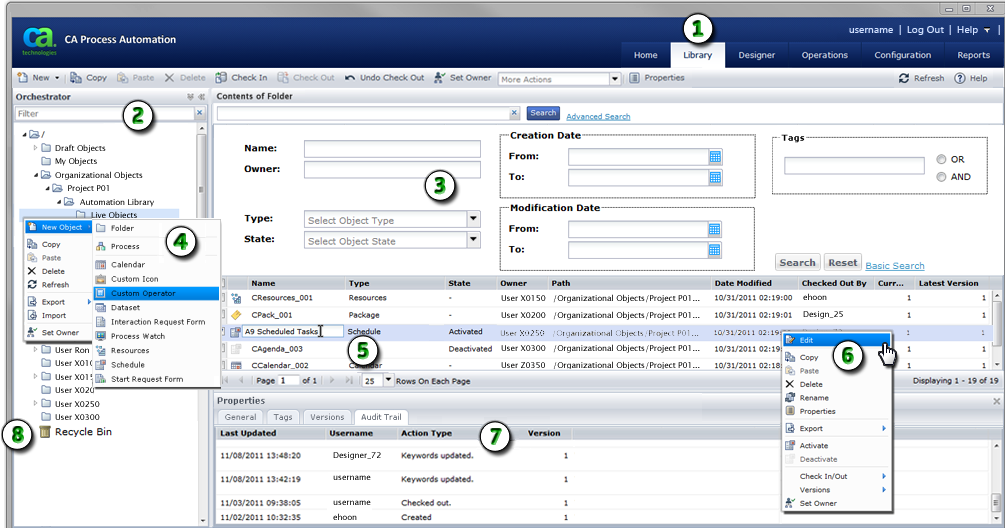
To manage automation objects in folders, use the Library Browser.
|
Item: |
Description: |
|---|---|
|
|
Library Tab: Click this tab to navigate to the Library Browser. Use the Library Browser to view, create, edit, or remove automation objects and folders. |
|
|
Folder Pane: CA Process Automation displays the orchestrators and folders that you can access in this resizeable pane. Apply a filter to view only matching folders. For example, Folder_2 would find Folder_2, Folder_200, and MyFolder_2. |
|
|
Search Area: Enter criteria to perform a basic or advanced search. For example, locate one or more objects by name, type, or keyword. You can also search for and replace objects. |
|
|
Create Automation Objects: In the Library Browser, you can create folders to store automation objects. Right-click a folder to view a menu of commands you can perform in that folder. You can also create new automation objects such as a processes, schedules, or start request forms. |
|
|
Rename an Object: Right-click an object and select Rename from the shortcut menu to edit its name. |
|
|
Edit an Object: Use the toolbar or right-click an object to view a shortcut menu of commands. |
|
|
Properties: This tabbed panel displays general data, tags, versions, release, and an audit trail for each object. |
|
|
Recycle Bin: Use the Recycle Bin to manage objects and folders that have been deleted. The application lets you restore them, leave them in the Recycle Bin, or permanently purge them. |
Note: For information about configuring security for objects and folders, see the Content Administrator Guide.
|
Copyright © 2014 CA.
All rights reserved.
|
|


