

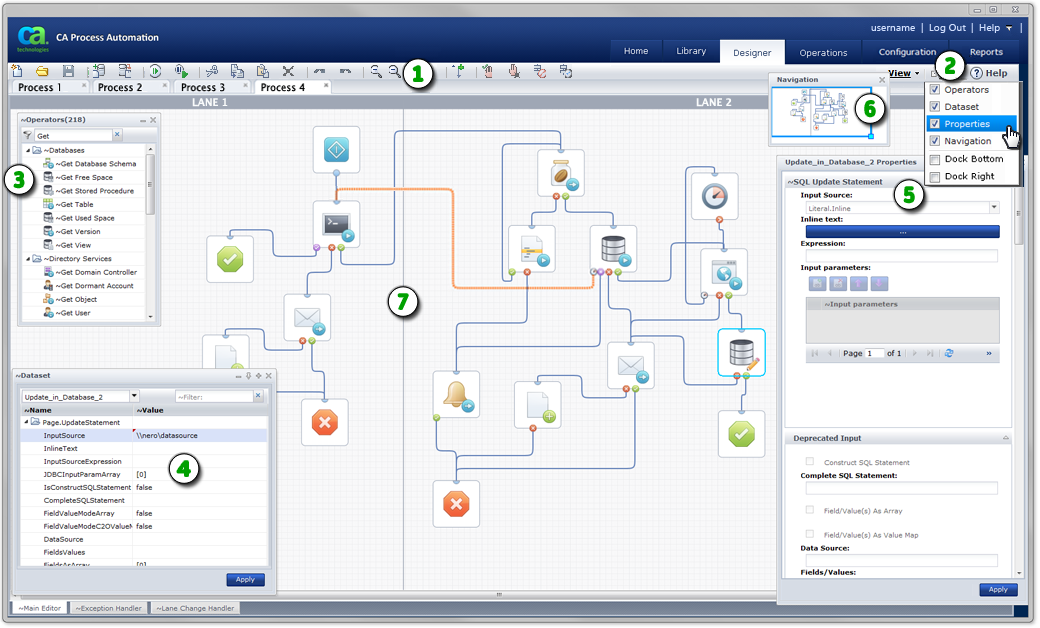
To design, edit, and test a process, use the Designer page. The Designer supports the following process details:
|
Item: |
Description: |
|---|---|
|
|
Designer Tab: When you open a new process or edit an existing one from the Library Browser, this tab appears. If this tab is not available, it means you have not yet opened a process or do not have security permissions to open a process. |
|
|
Process Designer Toolbar: Use the tool buttons to design and test processes. Use the View settings at right to show or hide the Operators, Dataset, Properties, and Navigation palettes. |
|
|
Process Tabs: Each process you open appears in its own tab. You can copy and paste objects between tabs. |
|
|
Process Designer: The actual process design appears in this work area, canvas, or layout. The process designer includes the grid, lanes, all operators, ports, and connecting lines. |
|
|
Operators Palette: Drag and drop operators with specific functions from this palette to your process layout. |
|
|
Dataset Palette: Use this palette to view or edit the variables in process or operator datasets. |
|
|
Properties Palette: Use this palette and its links and windows to manage the properties for an operator. This example displays Run Script operator properties. The user has also added code in the Post-execution Code dialog. |
|
|
Navigation Palette: Use this palette to navigate to specific regions in larger processes. To save time, try panning within this palette instead of scrolling the main designer layout. |
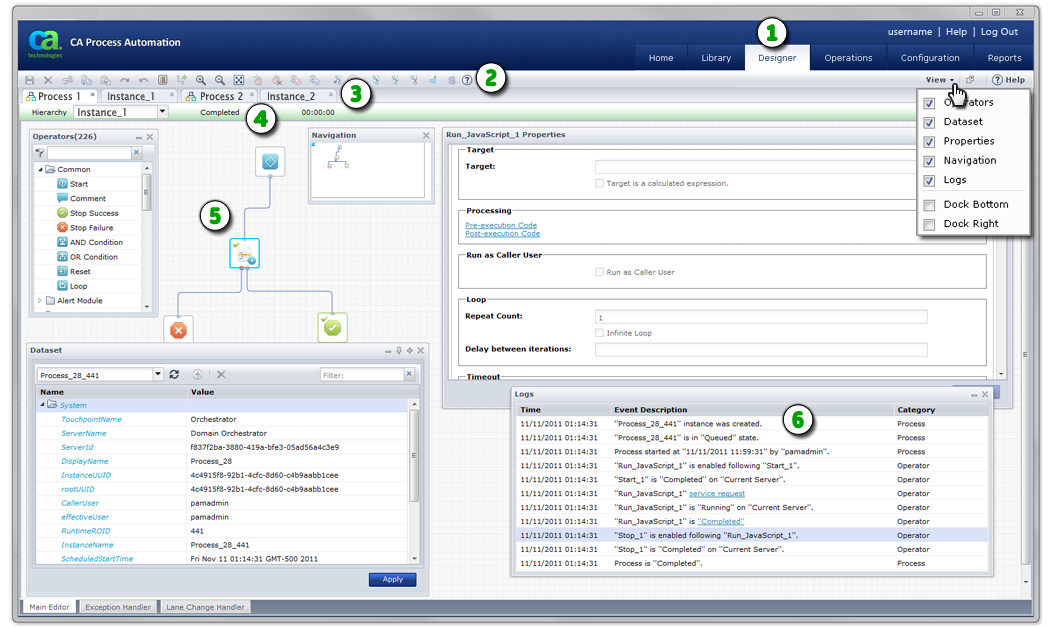
You can also run process instances on the Designer page.
|
Item: |
Description: |
|---|---|
|
|
Designer Tab: This tab appears when you open an existing process instance from another page in the application. If this tab is not available, you have not yet opened a process instance or do not have security permissions to open a process instance. |
|
|
Process Instance Toolbar: Use the tool buttons to stop, start, debug, and test actual instances of a process. Use the View settings at right to show or hide the Operators, Dataset, Properties, Navigation, and Logs palettes. |
|
|
Process and Instance Tabs: Each process and each instance of a process that you open appears in its own tab. Process instance tabs appear adjacent to their source process design tab. Process tabs show an icon. Process instance tabs do not show an icon. CA Process Automation assigns a unique process ID number to each instance name to help you identify different instances. You can copy and paste objects between tabs. |
|
|
Process Instance Status Bar: This bar displays the status of the instance. When applicable, the status duration also appears. For example, a Waiting instance will also show a live clock indicating how long the instance has been in this state. You can also use the Hierarchy control to focus on specific subprocesses. |
|
|
Process Instance: The design for the process instance appears in this work area, canvas, or layout. The process instance includes the grid, lanes, and all operators, ports, and connecting lines. Use it to trace the path of your process as it runs. |
|
|
Logs Palette: Use this palette to verify or troubleshoot process instances. |
|
Copyright © 2014 CA.
All rights reserved.
|
|


