

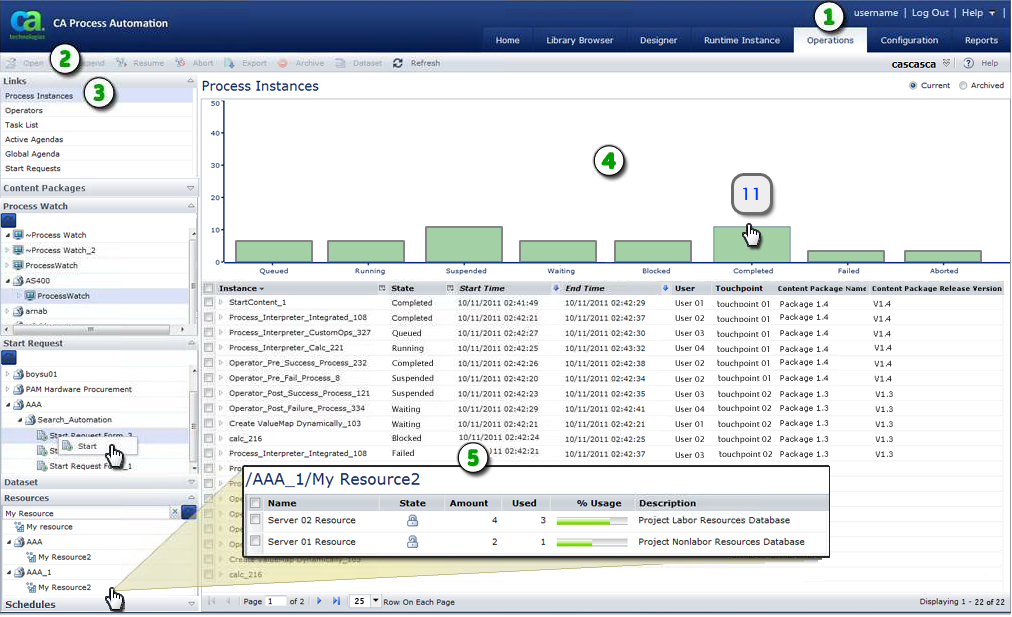
The Operations page displays a dashboard of the following key elements:
The Operations page helps you manage running or completed processes. Start the processes on demand and interact with running processes through interactive forms. The Operations page is an automation dashboard that answers the following types of questions:
|
Item: |
Description: |
|---|---|
|
|
Operations Tab: Click this tab to view the Operations page. |
|
|
Operations Toolbar: Use these commands to work with items in the various Operations page lists. |
|
|
Operations Pane: Select an entry from the expandable list in this pane. For example:
In the illustration, the user has entered My Resource to find matching entries arranged in folders in the Resources section of the pane. |
|
|
Graph or Chart Area: The product displays the data as a graph or chart for process instances, process watches, and process instances that are in content packages. In the illustration, the user is pointing to the Completed instances bar to see the total count (11). Click a bar in the chart to add the associated status value to the filter for the result list below it. Click the bar again to remove the value from the filter. |
|
|
Main Page or List: The main area of the Operations page displays essential information. In addition to the chart, the product often presents this data in a table, list, or form. For example, you can view, filter, and sort a list of instances by their state. Click a resource object to view the current status of the resources it represents. |
|
Copyright © 2014 CA.
All rights reserved.
|
|


