

Use the Active Interfaces page to view the routers, interfaces, custom virtual interfaces (CVIs), and interface aggregations.The page shows only the routers and interfaces that have contributed to the collected data at some time. You can perform the following actions on the Active Interfaces page:
Follow these steps:
The Administration page opens.
The Active Interfaces page opens.
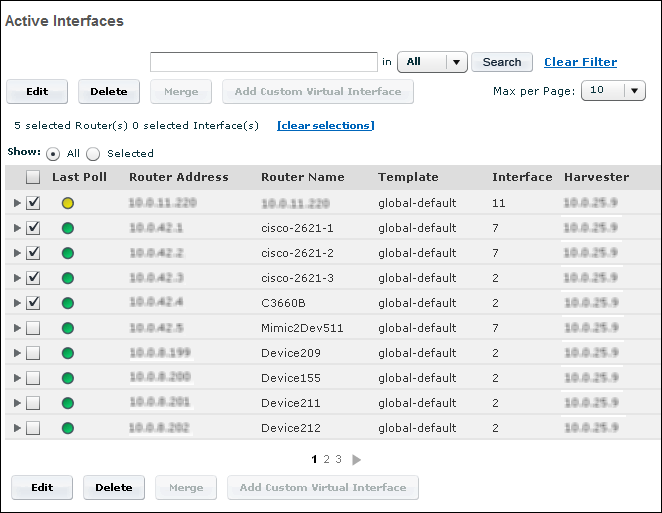
The Active Interfaces page includes the following options:
Use a text string to search for routers, interfaces, or other elements with a matching address or name.
Modify properties of the selected item or items.
Remove routers and interfaces from the page--for example, to address capacity issues.
Combine the data for two selected physical interfaces or CVIs.
Create a custom virtual interface based on the selected physical interface.
Routers are listed in tables on the Active Interfaces page. The router tables contain the following columns.


Status of the router at the most recent scheduled polling attempt:
IP address of the router
User-assigned name of the router, such as lab1 router
Interface naming template that is assigned
Total number of interfaces, interface aggregations, and CVIs for the router. This count includes only the interfaces that have contributed to the collected data at some time. To review all interfaces, go to the Available Interfaces page.
IP address of the Harvester that collects data from the router
Interfaces and custom virtual interfaces (CVIs) are listed on the Active Interfaces page in tables nested under their parent routers. To display the interfaces and CVIs for a router, click the arrow next to the router name. Interface tables contain the following columns.
Status of the interface at the most recent poll:
Icon for the interface type, such as a physical interface, CVI, or interface aggregation. To display the interface type name, position the cursor over the icon.
User-assigned name of the interface, CVI, or interface aggregation
Optional information for identification
Index value, which is assigned by the device that sends flows to the interface
Connection type, such as WAN or LAN
Inbound speed of the interface, provided the speed is known
Outbound speed of the interface, provided the speed is known
Domain of the interface. If the environment has only one domain, the Domain column is not visible.
Link to add, edit, or view notes about an interface. If the note is empty, the Notes icon is dimmed. For example, you could add information about the time zone, business unit, geographical location, alternate bandwidth, circuit ID, or history. Notes icons are dimmed until they are populated and the page is refreshed.
To display the Notes icon, set the Display Notes Field value to True on the Application Settings page.
|
Copyright © 2014 CA.
All rights reserved.
|
|