

Applies to CA6000 and CA6300 appliances
Problem: The Adaptec RAID Controller in the appliance does not consider an array with bad stripes to be degraded because no physical drives are offline. Therefore, the System Status page of the CA Multi-Port Monitor web interface incorrectly shows the status of a RAID array as Optimal with no indication of failed stripes.
Resolution: Review the RAID controller status using the Adaptec Storage Manager command line utility, arcconf. If an array has a Degraded or Failed Stripes status, attempt to recover the array before upgrading CA Multi-Port Monitor.
Warning: Upgrading a CA Multi-Port Monitor with Failed Stripes on the System Array will likely result in widespread file system corruption on the array and the appliance may no longer be able to start due to a kernel panic from the CentOS Linux operating system.
An array with a Failed Stripes status indicates:
A Failed Stripes state can occur when:
Note: According to Adaptec, it is not possible to recover the data from failed stripes within an existing array, and the BIOS and arcconf utilities provide no insight into which stripes have been lost.
The impact of this data loss on monitoring device function is dependent on which stripes have been lost. If they were empty disk space, and this procedure successfully verifies and rebuilds, the monitoring device may continue to function normally even with failed stripes.
However, if the failed stripes contain important system files or data, it is likely not possible to recover monitoring device function.
The Adaptec Storage Manager command line utility, arcconf, is third party software and must be installed separately. See the Installation Guide for more information.
Prefix all commands with "sudo" to run the arcconf utility with root permissions. Run the utility with no parameters to see a list of commands. For example:
sudo /usr/StorMan/arcconf
Follow these steps:
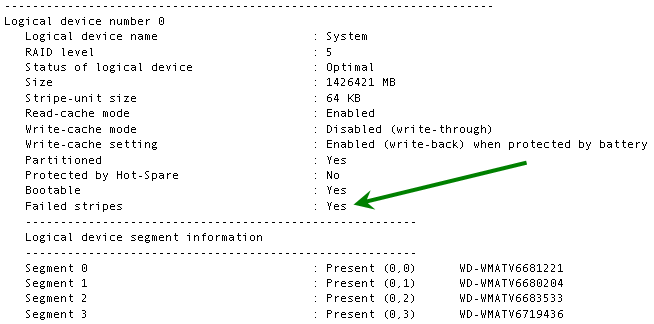
sudo /usr/StorMan/arcconf GETCONFIG 1 LD
In the following example, the System array has failed stripes. It is important to note that there is no indication of which disks caused stripe failure:
Use the Disk Utilities to detect and attempt recovery of bad sectors on the disk media.
It can take over an hour to verify each drive.
Once this is completed, it may be possible to rebuild the array successfully.
sudo /usr/StorMan/arcconf task start <controller_num> logicaldrive 0 verify_fix
|
Copyright © 2015 CA Technologies.
All rights reserved.
|
|