

Debugging a CICS or Batch Application › Breakpoints › Change Breakpoints - CICS
Change Breakpoints - CICS
The process for changing breakpoints is different for CICS and batch applications. The following procedure describes how to change a breakpoint in a CICS application.
Follow these steps:
- Right-click the blue circle to the left of the line that contains the unconditional breakpoint that you want to change, or double-click the breakpoint in the Breakpoints view, and select Configure Breakpoint in the dialog.
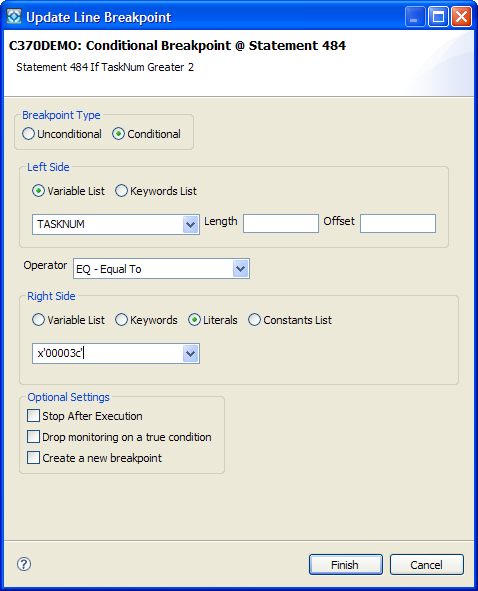
The Update Line Breakpoint dialog opens.
- Select Conditional breakpoint under Breakpoint Type.
The other fields become active.
- Click the Variable List button, and select TASKNUM from the Variable List.
- Click the Literals button and change the literal value to the new value where you want the breakpoint.
The following illustration displays the finished dialog showing a conditional variable at TASKNUM=x'00003c'.
- Click Finish.
The dialog closes and the breakpoint displays in the Breakpoints view as a conditional breakpoint.
- Repeat steps 1 through 5, and make statements 480 and 482 unconditional breakpoints.
- Change the breakpoint at statement 484 back to an unconditional breakpoint.
Copyright © 2015 CA Technologies.
All rights reserved.
|
|