

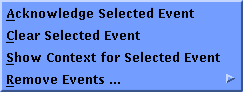
In the Eventlist, you can right-click an event and choose from a menu of event-specific commands:
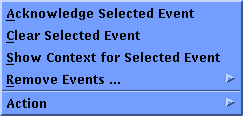
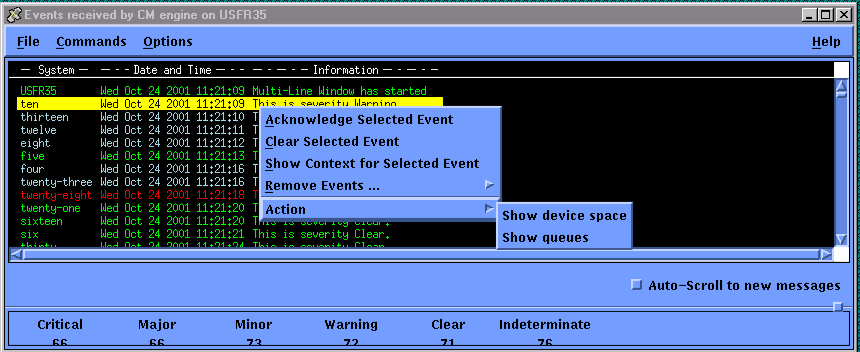
You can create a file, CONSOLE$EVENTLIST_POPUP.DAT, to add your own actions to this menu. This adds the entry “Action” to the bottom of the pop-up menu, which lists a sub-menu with the commands you define:
Console Manager looks in the current default directory used to start the Eventlist for a file named CONSOLE$EVENLIST_POPUP.DAT. Alternatively, you can place the file in the directory defined by the optional logical name CONSOLE$USER_DEFAULTS. The location of the interactive Eventlist settings may be customized through the use of this environment variable or logical name.
For example, to save your interactive Eventlist setting in the subdirectory Console Manager from your login directory, first create the Console Manager subdirectory, and then enter the following in your login script:
DEFINE/JOB CONSOLE$USER_DEFAULTS
SYS$LOGIN_DEVICE:[home_directory.CONSOLE]
To define additional Eventlist user actions, create the file CONSOLE$EVENTLIST_POPUP.DAT of the form:
MENU_ENTRY: non-visible-menu-name
MENU_NAME: visible-entry-name
MENU_COMMAND: command-file
MENU_END:
Visible-entry-name is the text that appears in the menu and command-file is the name of a DCL command file. Do not include an “@” in the command. You may specify the directory; the default is the current default directory. You do not need to add the “.COM” to the end of the file name.
For example:
MENU_ENTRY: MENU1
MENU_NAME: Show device space
MENU_COMMAND: DISK$USER:[FRED.UTIL]SHOW_DEVICES
MENU_END:
MENU_ENTRY: MENU2
MENU_NAME: Show queues
MENU_COMMAND: DISK$USER:[FRED.UTIL]SHOW_QUEUES
MENU_END:
|
Copyright © 2010 CA.
All rights reserved.
|
|