

Setting up the ENS Components › Using the DECwindows Interface to the Configuration Editor › Add Filters › Add Dispatches for Your Actions
Add Dispatches for Your Actions
See the chapter Understanding ENS for information about dispatching.
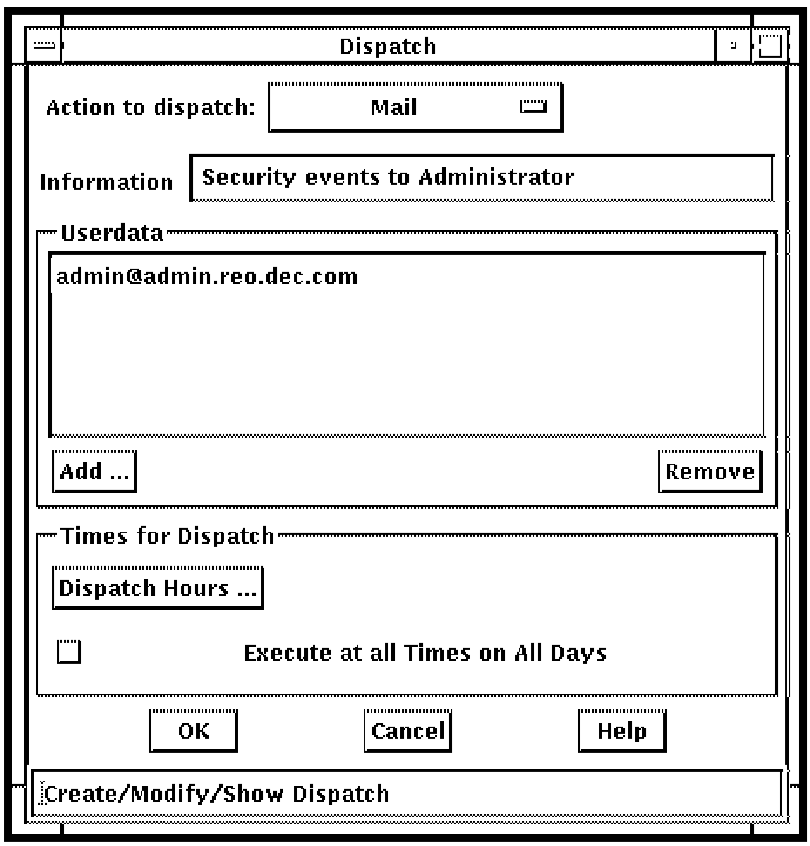
The dispatch dialog box is shown in the following figure.
To add dispatches for your actions
- Click the Action to dispatch button and select the action you want to be dispatched from the list displayed. For example, to mail the event to a user, select Mail.
- Enter information particular to that action. For example, Security events to Administrator.
This field is useful if the filter has multiple entries for the same action, as the field is used in the filter dialog to distinguish between the dispatches.
- Userdata is required for Mail (see Chapter 14, “Supplied Action Routines”). Therefore, click Add ... and fill in the required userdata in the popup dialog box that appears. For example, admin@admin.reo.dec.com.
- Click OK.
- To invoke this action at specific times of the day, for example, during working hours between 09.00 and 17.00 each day, deselect Execute at all Times on all Days, and click Dispatch Hours ... This displays the Dispatch Hours dialog box as shown in the following figure.
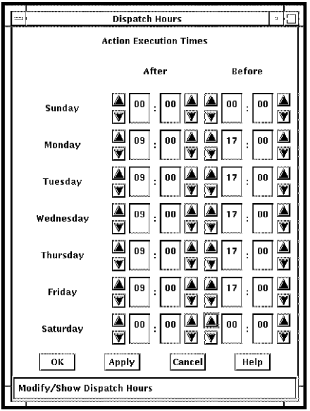
- For Saturday and Sunday, select 00:00 for both the After and Before times.
- Select 09:00 in the After column, and 17:00 in the Before column for each working day, using the arrows in the dialog box. Click OK.
- Click OK in the Dispatch dialog box. Your selected action will now appear in the Actions to dispatch box on the Filter dialog box.
Copyright © 2010 CA.
All rights reserved.
|
|