

Customizing Console Manager › Customizing Your C3 Display › Drawing Lines
Drawing Lines
To show the connections between the various pieces of hardware in your Console Manager environment by drawing lines on the C3 display
- Click the mode change button to change to Edit mode.
- Click the right mouse button on the display background, and choose the Line Drawing menu / On submenu. This displays the C3 Line Characteristics dialog box where you can adjust your line characteristics. This dialog box will remain on the screen until you turn off this facility, and dismiss the C3 Line Characteristics dialog box.
If you dismiss the C3 Line Characteristics dialog box, you can get it back by clicking the right mouse button on the display background, and choosing set characteristics menu option
- In the C3 Line Characteristics dialog box, set the line width by dragging the slider bar.
- Set the color by clicking on that color. To create your own color, double-click the Custom button, and set the color you desire from the C3 Line Color dialog box.
- Click OK.
- To draw a line, do the following:
- Click and hold the left mouse button where you want the line to start.
- Move your cursor to the point where you want the line to end, and release the left mouse button.
To cancel the current line, press the right mouse button while drawing with the left mouse button.
If you make a mistake after you have drawn a line or lines and want to delete any of those you have drawn, click the right mouse button on the line and then click Delete Line. You cannot move or stretch lines.
- To end your line drawing session, click Line Drawing Off from the same pop-up menu.
- After finishing all your edits, click the mode change button to change back to Interactive mode.
- To save your edits, pull down the Options menu and choose the Save menu item to save the changes you have made.
You cannot change the width or color of lines already drawn on the display. to make changes, delete the line, change the line characteristics and redraw the line.
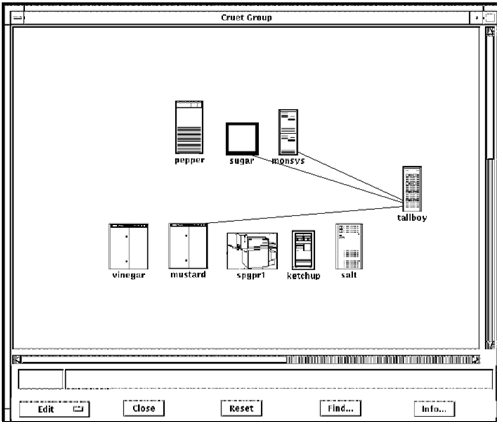
The following figure shows lines added to the display to represent the network connections.
Copyright © 2010 CA.
All rights reserved.
|
|