

Customizing Console Manager › Customizing Your C3 Display › Add Text to the Display
Add Text to the Display
To add text other than the icon labels to the display
- Click the mode change button to change to Edit mode.
- Click the right mouse button where you want to add text.
- Choose Add Text from the pop-up menu displayed. This displays the C3 Text dialog box. From here you can add text, display it in any color available in the colors palette and change its font.
- Enter the text, choose a new color for the text if you wish, change the font if you wish and then click OK.
- To position the text on your C3 display, click and hold the left mouse button over the text, drag it to the required position and release the left mouse button.
- After finishing all your edits, click the mode change button to change back to Interactive mode.
- To save your edits, pull down the Options menu and choose the Save menu item to save the changes you have made.
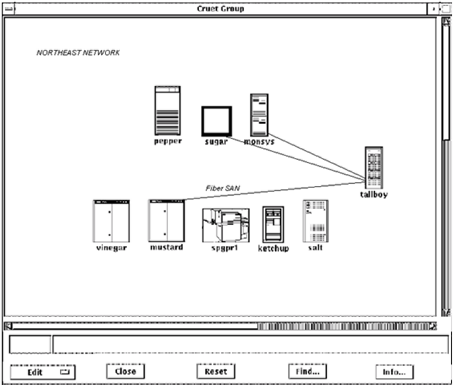
The following figure shows text added to the display.
Copyright © 2010 CA.
All rights reserved.
|
|