

Customizing Console Manager › Customizing Your C3 Display › Moving Icons
Moving Icons
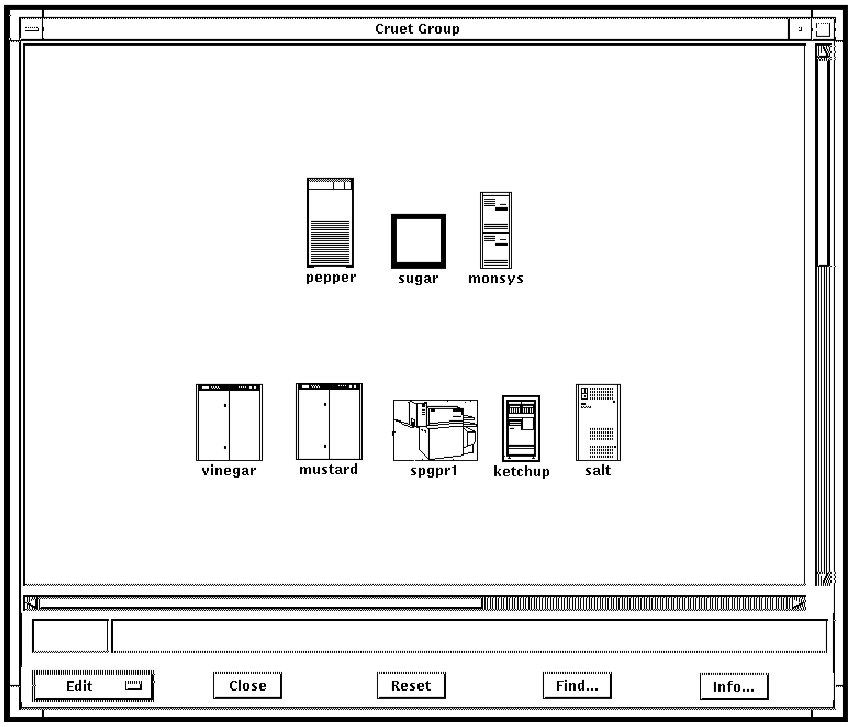
To move the icons representing the serviced systems and peripherals on your display
- Click the mode change button to change to Edit mode.
- Press and hold the left mouse button on the icon you wish to move, drag it to its new position and release the left mouse button.
- To move one icon behind another, click the right mouse button on the icon you wish to move, then choose Push from the pop-up menu displayed.
- To move one icon in front of another, click the right mouse button on the icon you wish to move, then choose Pop from the pop-up menu.
- After finishing all your edits, click the mode change button to change back to Interactive mode.
- To save your edits, pull down the Options menu and choose the Save menu item to save the changes you have made.
Compare the figure in the section, How to Set Up a Common Console Manager C3 View, earlier in this chapter with the figure found in section, The Group Window, in Chapter 7, “Using Console Manager From the Command Line Interface,” to see how icons can be repositioned.
Copyright © 2010 CA.
All rights reserved.
|
|