

To allow users access to serviced systems and to define the privileges they have within Console Manager
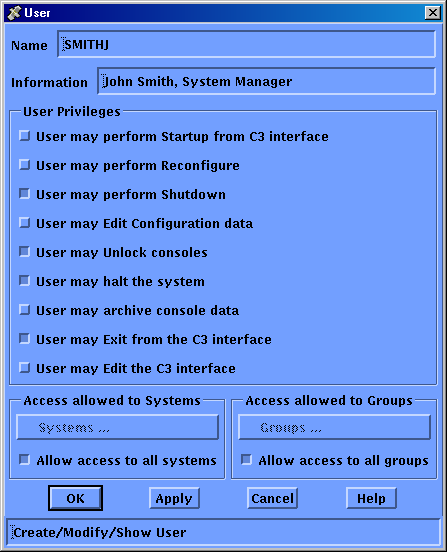
This displays the User Name dialog box. You must enter the user's account name here. For example, smithj.
This displays a selection box with two columns: Selected Systems and Available Systems. Click the systems you wish to the user to be granted privileges for from the list of available systems on the right side of the dialog box. For example salt and pepper. These system names will then be transferred into the column displaying the selected systems on the left side of the dialog box.
Note: If you grant access to a subset of the serviced systems defined in the configuration database, then a group definition is also required. However, granting a user access to all groups overrides the subset of systems, and provides the user with full access.
The following table explains what to enter in the fields on the User dialog box.
|
Item |
Description |
|---|---|
|
Name |
A unique account name for the user. |
|
Information |
Description to clarify name. |
|
Startup |
Indicates if user has privilege to start Console Manager from the C3 interface. |
|
Reconfigure |
Indicates if user has privilege to reconfigure Console Manager. |
|
Shutdown |
Indicates if user has privilege to shut down Console Manager. |
|
Edit Configuration Data |
Indicates if user has privilege to edit the configuration database. |
|
Can Halt System |
Indicates if user has privilege to halt a system. |
|
Archive Console Data |
Indicates if user has privilege to archive console data. |
|
Exit from C3 Interface |
Indicates if user has privilege to exit from the C3 interface. |
|
Edit the C3 Interface |
Indicates if user has privilege to edit the C3 interface. |
|
Access Allowed to Systems |
Indicates whether or not access to all systems is allowed. |
|
Access Allowed to Groups |
Indicates whether or not access to all groups is allowed. |
|
Copyright © 2010 CA.
All rights reserved.
|
|