

Modifying the Configuration Database › Using the DECwindows Motif Interface to the Configuration Editor › Add Groups
Add Groups
A group is a subset of the defined systems in the Console Manager configuration database. For example, the New York group consists of all systems in the New York branch office. A system can be a member of multiple groups.
To add a group
- Start the configuration editor.
- Pull down the Edit menu and choose the Group/Create submenu. This displays the Group Name dialog box.
- Click the space provided for the name of the group and enter a name. For example, New York.
- Click OK. This displays the Group dialog box, as shown in the following figure.
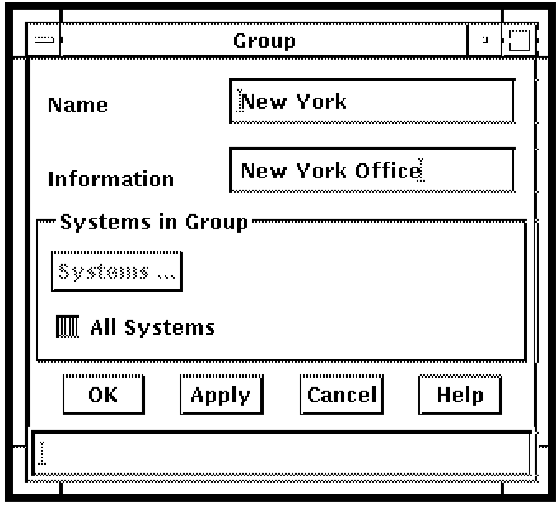
- Complete the fields in the dialog box, using the following table to help you.
- Enter a description for the group in Information. For example, New York Office.
- Deselect the All Systems check button if you do not want all systems to belong to the group, which is set as the default. This makes Systems ... active. Then click Systems. This displays a selection box with two columns: Selected Systems and Available Systems. Click the systems you wish to add to the group from the list of available systems on the right side of the dialog box. For example salt and pepper. These system names will then be transferred into the column displaying the selected systems on the left side of the dialog box.
- Click OK, and then on OK in the Group dialog box.
- Continue to enter other groups, if you wish.
The following table explains what to enter in the fields on the Group dialog box.
|
Item
|
Description
|
|
Name
|
A unique name for the group
|
|
Information
|
Description to clarify name
|
|
Systems in group
|
Lists the systems which are members of this group
|
|
All Systems
|
Indicates whether or not to add all systems to the group
|
Copyright © 2010 CA.
All rights reserved.
|
|