

User Guide › Service Comparison › SMI Metric Weights › Create a New Weight Setting
Create a New Weight Setting
The Weight Editor lets you adjust the relative weight settings for SMI comparison characteristics. You can save your choices as a new weight setting which you can apply later or reuse under different circumstances.
Follow these steps:
- Open the pane in the Services management feature for the weighting features you want to work with. For example,
- In the All Services pane, to work with weighting for selected services.
- In the Internal Trend Chart, to work with weighting in the context of performance trends.
- In the Explore Alternative Services feature, to work with weighting for services with comparison data on Cloud Commons.
- On the Weighting drop-down menu, click Create New.
The Weight Editor opens.
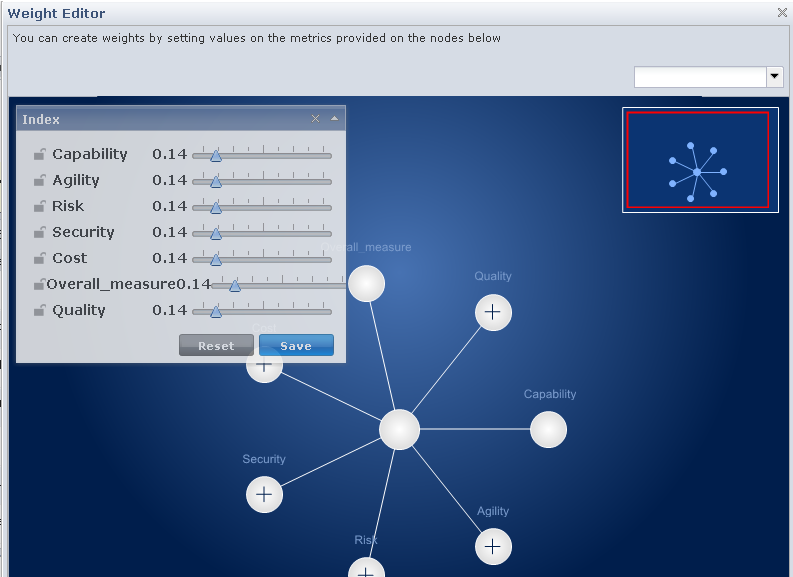
- You can set values for the metrics by moving the slider for one of the characteristics in the Index box.
For example, move the Cost slider to the right to increase its weight value. The other characteristics automatically adjust to maintain the overall weight value total of 1.
- Click the lock/unlock icon next to the characteristic name to exclude or exclude it from the weighting. For example, if you want to exclude Risk from the calculation, you can lock it. When it is locked, the slider for Risk does not move as you adjust the other sliders.
- Click Save to save your settings.
The table with characteristic and sliders closes and the background graphic that illustrates the relative weight adjusts to reflect your changes.
- Click another node within the characteristic to create more granular settings within that characteristic. For example, click the Security node to display its six subcharacteristics.
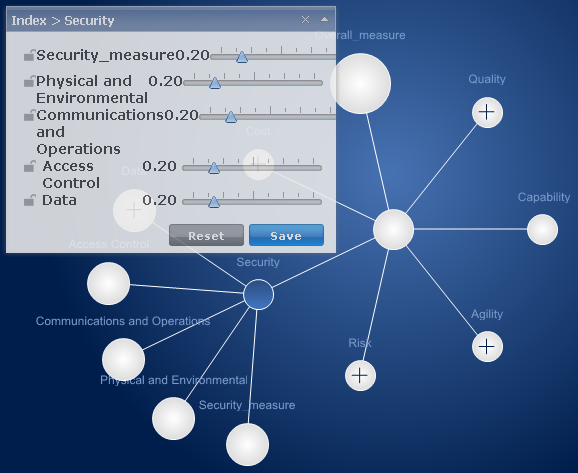
- When you finish working with the Weight Editor, click Save as Template to save your work for reuse at a later time.
You are prompted to name you weight setting for later use.
Copyright © 2012 CA.
All rights reserved.
|
|