

User Guide › Design › Foundation Entities › Custom Attributes › Search for a Custom Attribute
Search for a Custom Attribute
You can search for custom attributes by name, description, value type, attached resource, resource group or resource type; or, by a combination of these options.
By default, the Custom Attributes page displays an alphabetical list of all defined custom attributes. To narrow your search, use the search options described in this section.
To search for a custom attribute
- Open Custom Attributes page (Framework/Custom Attributes), open the search box and enter your search criteria:
- In Search for, enter a name or description for which you want to search.
- In Value type, select the value type from the drop-down list.
- Click Search. The results are displayed below the search area.
Note: You can also select a letter from the alphabet list to display a list of custom attributes that begin with that letter.
Note: You can also select a predefined search from the Saved Searches drop-down list
You can use an advanced filtering mechanism for additional refining of the search results.
To add Advanced filtering options
- Repeat step one above.
- Click Advanced. The Advanced Search page will open.
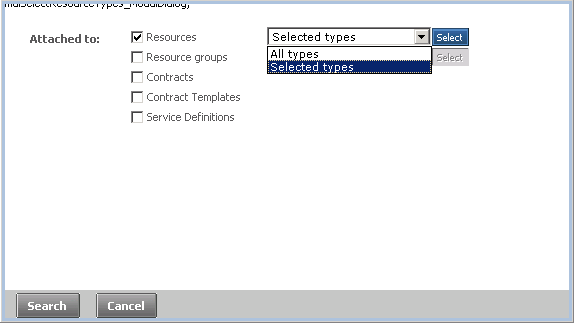
- In Attached to, select the check box next to the entity type(s) that have custom attributes you want to search for.
- If you select the Resources and/or Resource groups check box, select from the drop-down list:
- All types - To search for custom attributes in resources of all types
- Selected types - To define specific resource type(s) to search. Click Select to open the Select Resource Types page.
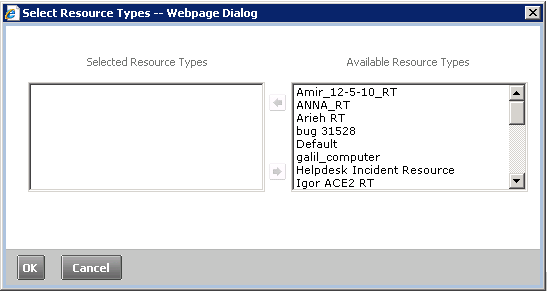
- Select the resource type(s) from the Available Resource Types window and press
 . the selected resource type(s) are added to the Selected Resource Types window.
- Click OK. the Advanced Search page is displayed.
- Click Search. The results are displayed below the search area.
Copyright © 2013 CA.
All rights reserved.
|
|