

After you deploy the upgraded content pack, verify the data sets in CA Process Automation as described in this section.
Follow these steps:
Configure the CA Process Automation content.
Follow these steps:
The AWS Operators content appears.
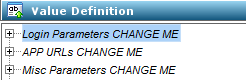
Specify the CA Service Catalog administrator user ID.
Specify the CA Service Catalog administrator password.
Specify the CA Service Catalog business unit name. (This value is case-sensitive).
Specify the management database administrator username.
Specify the management database administrator password.
Specify the CA Service Catalog URL.
Specify the CA Process Automation URL.
Specify the management database server name.
Specify the management database port number.
Specify the management database name.
Specify the administrator email id.
Specify the path of ASCUtil folder where the ASCUtil.jar is located.
Note: ASCUtil.jar is located in the ASCUtil folder. Copy the ASCUtil folder from the service cartridge bin folder and paste it in the computer on which CA Process Automation is installed.
Specify the temporary directory location where the CA Process Automation is installed.
Specify the value in percentage. When the usage exceeds this limit, an email is sent to the portal administrator.
Specify the portal administrator email id.
The CA Process Automation content for the service cartridge is configured.
|
Copyright © 2013 CA.
All rights reserved.
|
|