

You can work with multiple objects at the same time using zooms. A zoom is a view of the same item in another object. You can use the zoom function to obtain more information about a selected record.
Example of zooming from the CA Vtape Systems Object to the CA Vtape Peer-to-Peer Remote Statistics object
This example shows how you can select a CA Vtape system in the CA Vtape Systems object and display only that system's P2P statistic information.
The following is an example of the CA Vtape Systems object with the row containing the SVT3 system selected:
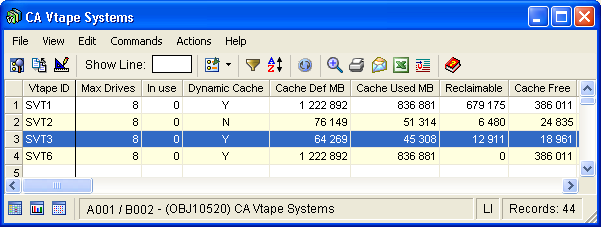
This indicates you want to display this record in another object.
Note: You can also click the row to highlight it, then click the Open Zoom icon ( ) in the object menu bar.
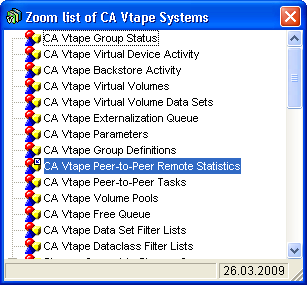
The Zoom list of CA Vtape Systems dialog appears. The zoom list consists of objects related to the CA Vtape Systems object. The following is a sample of the Zoom list of CA Vtape Systems dialog with the CA Vtape Peer-to-Peer Statistics object selected. This zoom list allows you to select a CA Vtape object and open a window that displays only the data associated with the selected system.
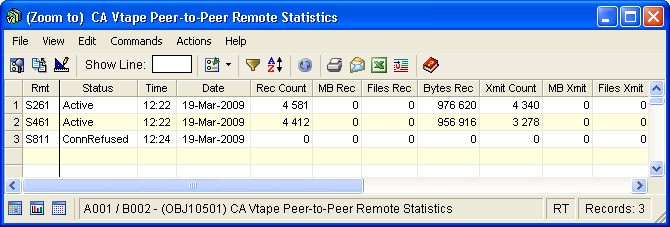
The (Zoom to) CA Vtape Peer-to-Peer Remote Statistics object is displayed. This object shows only information that is related to the CA Vtape system selected in Step 1.
The following is an example of the (Zoom to) CA Vtape Peer-to-Peer Remote Statistics object:
Example of zooming and using other features
You can zoom to another object as long as the Open Zoom icon () is selectable. When a Zoom to object is displayed you can use all the functions and options displayed on the menu bar and tool bar.
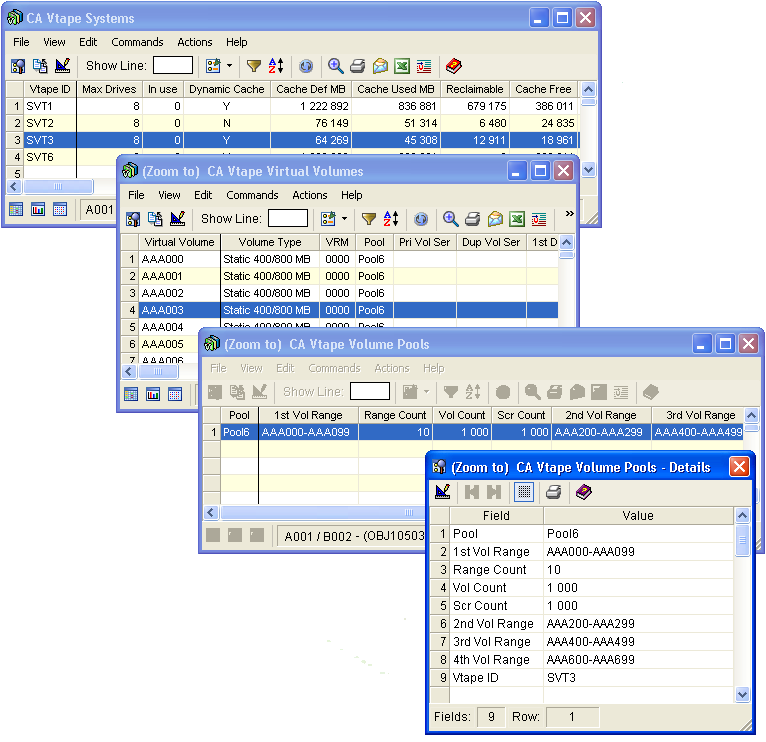
The following example shows the result of selecting system SVT3 in the CA Vtape Systems object and then zooming from the CA Vtape Systems object to the CA Vtape Virtual Volumes object, where only SVT3 Virtual Volumes are displayed. Then the Virtual Volume AAA003 is selected in the (Zoom to) CA Vtape Virtual Volumes object and then we zoomed to the CA Vtape Volume Pools object. Next Pool6 is selected in the (Zoom to) CA Vtape Volume Pools object and the View, Details menu option is selected to display the details of Pool6 in a separate Details window.
|
Copyright © 2013 CA Technologies.
All rights reserved.
|
|