

The Systems object contains all the information about the CA Vtape subsystems on a single z/OS image. The Systems object is useful for monitoring the status of each subsystem. You can also perform actions on your CA Vtape subsystems using this object's Action options.
To display Systems activity
CA Vtape objects are displayed in the Object Tree.
The table view of the Systems object appears, as shown in the following sample:
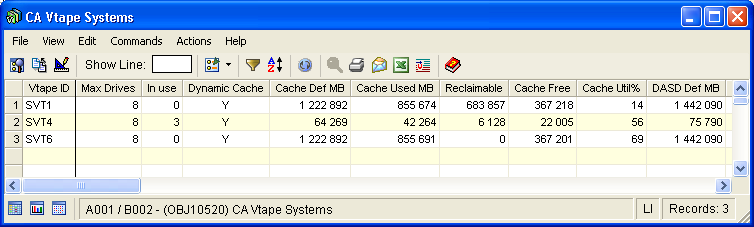
Note: Click the Help About Object tool bar icon ( ), to display a description of the field values displayed in the columns in the Systems object.
Systems Object Actions Menu
The following is an example of the Actions menu on the Systems object view Menu Bar:
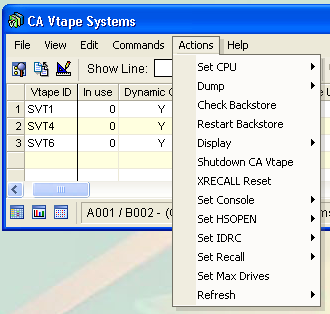
The following actions are available from the Actions menu option located on the Backstore Activity object view Menu Bar:
You can select one of the following options from Set CPU:
Issue this command to place CA Vtape into CPU Standard Mode.
Issue this command to place CA Vtape into CPU Isolation Mode.
You can select one of the following options from Dump:
This will cause the selected CA Vtape subsystem to be SVC dumped from the CA Vantage address space.
This will cause the selected CA Vtape to have an SVC dump request queued in it. This will cause that address space to be 'current' in the dump. If the selected CA Vtape region is hung, the dump may not get taken.
The CHECK BACKSTORE command checks the externalization queues looking for any virtual volume requiring externalization. The queues are browsed starting with GROUP=01 SUBGROUP=S and ending with GROUP=74 SUBGROUP=L. The SVTS subsystem automatically executes this command every 5 minutes, but you can issue it manually.
Gracefully stop all externalization tasks in progress, releasing the physical tape devices. Gracefully stop all recalls in progress, releasing the physical tape devices. Hold all externalization groups and restart SVTSAS.
You can select one of the following options from Display:
This action can be used to report on summary CSA utilization by CA Vtape address spaces and any lost (unowned) CSA storage caused by subsystem restarts. CSA/SQA VSM tracking must be set to ON in the DIAGxx member of SYS1.PARMLIB.
This action can be used to report on detail CSA utilization by CA Vtape address spaces and any lost (unowned) CSA storage caused by subsystem restarts. CSA/SQA VSM tracking must be set to ON in the DIAGxx member of SYS1.PARMLIB.
This action can be used to report the Logger status and activity level as it pertains to CA Vtape.
This action will cause CA Vtape to shutdown.
This action will cause CA Vtape to re-initialize the common Recall Server area of the Global VCAT. This command removes all pending recall requests and may be needed in the event of critical common Recall Server area errors. It should be executed only once, in any subsystem, for a CA Vtape Complex.
Virtual Control Units waiting for Recalls will re-post the requests removed by this command a few minutes after this command completes; however, Recalls posted using the SVTn START RECALL= console command must be manually re-posted.
You can select one of the following options from Set Console:
This action can be used to reset a Set Console Remote request for the CA Vtape. The will cause CA Vtape to send unsolicited console messages only to the local CA Vtape.
This action can be used to route unsolicited CA Vtape console messages to a remote CA Vtape indentified by a remote console prefix. Once set, any unsolicited messages will be issued locally and at the remote CA Vtape.
This command activates or deactivates the high-speed open option used by CA Vtape for externalizing or recalling virtual volumes to or from physical backstore files.
Virtual volumes are saved as files and stacked onto physical cartridges. Modern 10gb and 20gb cartridge devices can hold large numbers of these physical files. Open processing performed by the operating system normally positions to a relative file by issuing the forward space file channel command. This can result in significant delays as the relative position of a file increases (files near the front of the tape can be accessed quickly while files near the end of the tape take much longer). Applications can provide the block ID for open and this can significantly reduce the time to position to a specific file.
In order to use the high-speed open option CA Vtape records block IDs in the owner field of the catalog entry for the backstore files it creates on physical cartridges.
Note: Only the backstore files used by CA Vtape (that is, HLQ.VVE.Vnnnnnn.PRIMARY/DUPLEX) are affected by the high-speed open option. Catalog entries for the user data sets written onto virtual volumes are not affected in any way by this option.
When the high-speed open option is activated, CA Vtape uses the owner field to record the block id.
When the high-speed open option is deactivated, CA Vtape does not record and/or use any information in the owner field.
While most shops do not use the owner field of the catalog, some shops may have other requirements which may prevent them from allowing CA Vtape to this field in this manner. By activating or deactivating the high-speed open option you can control CA Vtape's use of this field.
Once activated or deactivated the high-speed open option remains in effect across IPLs until specifically deactivated or activated. In multi-system CA Vtape configurations, the high-speed open option must be activated or deactivated on each individual system.
You can select one of the following options from Set HSOPEN:
Issue this command to activate high speed open.
Issue this command to inactivate high speed open.
This command activates and deactivates the IDRC support. DEFAULT is the system default as specified in SYS1.PARMLIB(DEVSUPxx).
You can select one of the following options from Set IDRC:
Activate IDRC support.
Inactivate IDRC support.
Set IDRC to system default.
This command was created for Disaster Recovery flexibility. The default order for Recall from Backstore is from the Primary backstore data set. In a DR site it is likely the Duplex should be used, if it exists. This command allows the order to be switched at the local system (LPAR) level. The current value is displayed as the Recall order field using the SVTS STATUS command. The value is maintained across SVTS restarts.
You can select one of the following options from Set Recall:
Set recall to primary.
Set Recall to duplex.
Set recall to triplex.
Issue this command to alter the number of physical drives that CA Vtape can use to perform externalization.
Parameters for Set Max Drives are:
2 digit number (01-99). Default is 01.
This causes the specific CA Vtape parameter component to be refreshed from the parameter library.
You can select one of the following options from Refresh:
Causes the CA Vtape systems options to be refreshed.
Causes the CA Vtape group definition options to be refreshed.
Causes the CA Vtape data set and data class filters to be refreshed.
Causes the CA Vtape Volume Pool definitions to be refreshed.
|
Copyright © 2013 CA Technologies.
All rights reserved.
|
|