Previous Topic: Quick Start DeploymentNext Topic: Key Capabilities


Windows Agent Deployment

This section contains the following topics:

Create a User Account for the Agent

Set the Agent Authentication Key

Download the Agent Installation Program

Install an Agent

Create a Connector Based on NTEventLog

Configure a Windows Event Source

View Logs from Windows Event Sources

Create a User Account for the Agent

Before installing an agent on a Windows operating system, you create a new account for the agent in the Windows Users folder. The purpose of creating this low-privileged account for the agent is to allow it to run with the lowest possible privileges. You supply the user name and password you create here when you install the agent.

Note: You can bypass this step and specify the domain credentials of an Administrator for the agent when you do the installation, but this is not considered a good practice.

To create a Windows user account for the agent

  1. Log on to the host where you plan to install the agent. Use Administrative credentials.
  2. Click Start, Program Files, Administrative Tools, Computer Management.
  3. Expand Local Users and Groups.
  4. Right-click Users and select New User.

    The Windows dialog, New User appears.

  5. Enter a user name and enter a password twice. A strong password has mix of alpha, numeric, and special characters. For example, calmr12_agent. Optionally, enter a description.

    Important! Remember this name and password or record it. You will need to enter it when you install the agent.
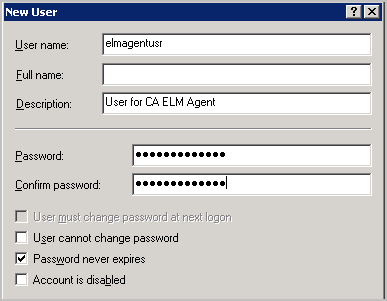
    New Windows user dialog

  6. Click Create. Click Close.

More information:

Install an Agent

Set the Agent Authentication Key

Before you install the first agent, you must know the agent authentication key. You can use the default, if no key has been set, use the current key, if one is set, or set a new key. The agent authentication key configured here must be entered during the installation of each agent. Only an Administrator can perform this task.

To set the agent authentication key

  1. Open the browser on the host where you plan to install the agent and enter the URL for the CA User Activity Reporting Module server for this agent. An example follows.
    https://<IP address>:5250/spin/calm/
    
  2. Log on to the CA User Activity Reporting Module. Enter your name and password and click Logon.
  3. Click the Administration tab.

    The Log Collection Explorer displays in the left pane.

  4. Select the Agent Explorer folder.

    A toolbar appears in the main pane.

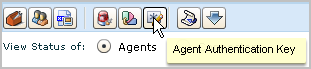
  5. Click Agent Authentication Key

    Agent Explorer buttons - showing Agent Authentication Key button selected

  6. Enter the agent authentication key to be used for agent installation or take note of the current entry.

    Important! Remember or record this key. You will need it to install the agent.
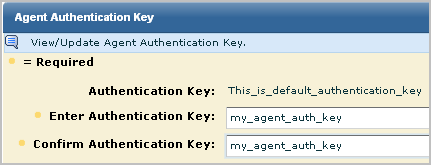
    Agent Authentication dialog

  7. Click Save.
  8. Continue with the next step, Download the Agent Installation Program.

Download the Agent Installation Program

If you just set the agent authentication key, you are positioned to download the agent installation program onto the desktop.

To download the agent installation program
  1. Click Download Agent binaries from the toolbar displayed for Agent Explorer.

    Download Agent binaries button

    Links for the available agent binaries appear in the main pane.
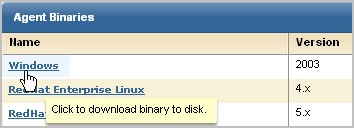
  2. Click the Windows link to install the agent on a server with a Window Server 2003 operating system.

    Agent Binaries display

    The dialog, Select location for download by <IP address>, appears.

  3. Select the desktop and click Save.

    Agent download location dialog - showing Desktop

    A message showing the progress of the download of the selected agent binary appears, followed by a confirmation message.

  4. Click OK.
  5. Minimize the browser but leave the connection open so you can quickly verify the installation after it completes.

    The Setup Launcher for the agent installation program appears on the desktop.
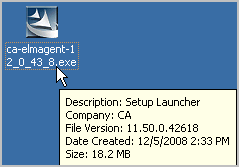
    Agent Setup Launcher shortcut

More information:

Plan Agent Installation

Install an Agent

Before you begin, have at hand the following:

To install an agent for a Windows host

  1. Double-click the agent installation launcher.

    Agent Setup shortcut

    The installation wizard starts.

  2. Click Next, read the license, click I accept the terms in the license agreements to continue, and click Next.
  3. Accept the installation path or change it and click Next.
  4. Enter the requested information as follows:
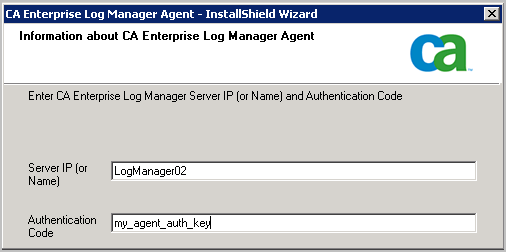
    1. Enter the hostname for the CA User Activity Reporting Module to which this agent is to forward the logs it collects.

      Note: Since the CA User Activity Reporting Module in this example scenario uses DHCP for IP address assignment, you should not enter the IP address here; doing so introduces the risk of having to reinstall the agent if the IP address of the server ever changes.

    2. Enter the agent authentication key.

    An example follows:

    Agent Install wizard - Authentication entry

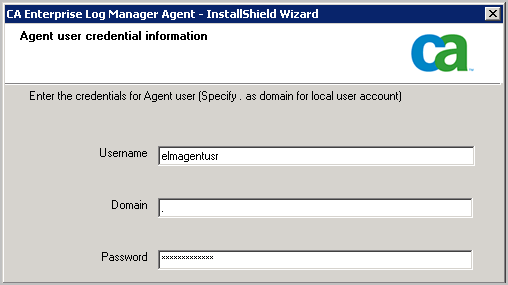
  5. Enter the name and password defined in the user account you set up for the agent and then click Next.

    Agent Install wizard - User credential entry

  6. Click Next. Specifying an exported connector file is optional.

    The Start Copying Files page appears.

  7. Click Next.

    The agent installation process completes.

  8. Click Finish.
  9. Continue with configuring connectors for this agent.

    After connectors are configured, the collected events are sent to the CA User Activity Reporting Module Event Log Store through port 17001.

    Important! If you do not allow outgoing traffic from the host on which you installed the agent and you use the Windows Firewall, you need to open this port on your Windows Firewall.

More information:

Download the Agent Installation Program

Set the Agent Authentication Key

Create a User Account for the Agent

How to Protect Agents from Impact of Server IP Address Changes

Create a Connector Based on NTEventLog

After installing an agent, you create a connector to specify the event sources for the events you want to collect. Since you installed an agent on a server with a Windows operating system, you create a connector based on the NTEventLog integration and specify settings for the WMILogSensor as described in the connector guide you open from the New Connector Creation wizard. You specify the name of the host on which the agent is installed for agent-based log collection. Optionally, you can add another WMI log sensor for this connector and specify a host other than the one where the agent is installed. This enables agentless log connection. The additional host or hosts must be in the same domain and have the same Windows administrator as the first host you added.

To configure a connector based on NTEventLog

  1. Maximize your browser displaying the CA User Activity Reporting Module Agent Explorer.
  2. Expand Agent Explorer and then expand the Default Agent Group.

    The name of the computer where you installed the agent appears.
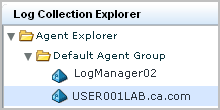
    Agent Explorer folder - showing agents and groups

  3. Select this agent.

    The Agent Connectors pane appears.

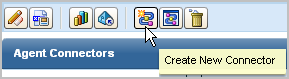
  4. Click Create New Connector

    Agent Explorer buttons - Create New Connector selected

    The New Connector Creation wizard appears with the Connector Details step selected.

  5. Leave Integrations selected, and select NTEventLog from the Integration drop-down list.

    The Connector Name and Description fields are populated based on the selection of Integration.
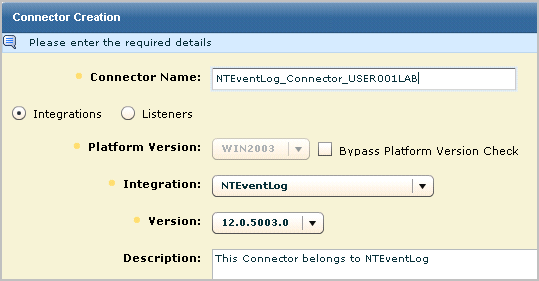
  6. Edit the connector name to make it unique. Consider extending this name with the target server name, for example, NTEventLog_Connector_USER001LAB.

    Select NTEventLog as the Integration. Make the connector name unique by appending the target hosname for host-based log collection.

  7. Select the Connector Configuration step.

    Agent Install wizard - Navigation bar

    The Sensor Configuration pane appears with a Help button to the Connector guide for NTEventLog, which provides help on the fields for sensor configuration.
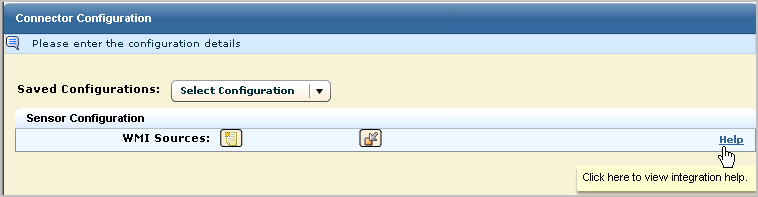
    The connector configuration panel includs a help button for the associated connector guide.

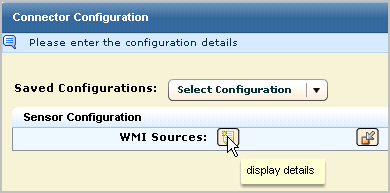
  8. Click the display details button for WMI sources.

    Click display details for WMI sources.

  9. Configure the WMILogSensor settings for the local computer for agent-based log collection. Click the Help link for details.

    The following example shows a configuration where the user is a Windows administrator on the specified WMI server. The domain is for the WMI server.
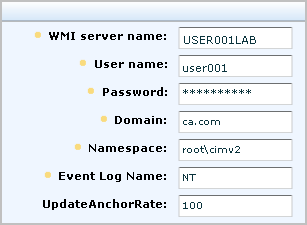
    WMI server name is the local machine where the agent is installed.

  10. (Optional) Configure a WMI sensor for a different computer for agentless log collection using this same connector.
    1. Click the repeat super node button.

      The following illustration shows a configuration with two WMI sources.
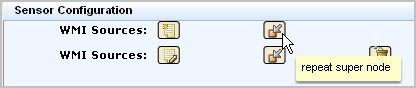
    Click the repeat super node button.

    1. Configure the WMILogSensor settings for another computer.

    The following example shows a configuration for a second WMI log sensor in the same domain and with the same administrator credentials.
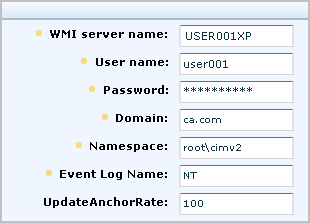
    This sensor points to a computer remote from the one where the agent is installed.

  11. Click Save and Close.
  12. To view the status of the connector you configured, do the following:
    1. Select the agent in the left pane.
    2. Click Status and Command.
    3. Select View Status of Connectors.

    The Status Details pane appears.

    Connector Status Details pane

  13. Click the Running link.

    The displayed status of the target configured in the connector includes the CPU percentage, memory usage, and average events per second (EPS).

Configure a Windows Event Source

After configuring a connector using the NTEventLog integration on the agent, you should be able to see events through your Event Viewer. If events are not being forwarded to your event viewer, you should change the Windows settings for your Local Policies on the event source.

To configure local policies on the event source for a NTEventLog connector

  1. If the Log Collection Explorer is not already displayed, click the Administration tab.
  2. Expand Event Refinement Library, expand Integrations, expand Subscription, select NTEventLog, and click the Help link above the Integration Name on the View Integration Details pane.

    The Connector Guide for NT Event Log (Security, Application, System) appears.

  3. Minimize the CA User Activity Reporting Module user interface and follow the directions in the Connector Guide for editing local policies on an event source running on a Windows operating system.

    Note: If your system is Windows Server 2003, select Control Panel, Administrative Tools, Local Security Policy, and then expand Local Policies.

  4. (Optional) If you configured a WMI Sensor for a second WMI server, edit the local policies on that server also.
  5. Maximize CA User Activity Reporting Module.

View Logs from Windows Event Sources

One of the quickest ways to view query results on incoming events is to use the Prompt for Host. You can also select queries or reports.

To view incoming event logs

  1. Select the Queries and Reports tab.

    The Queries subtab displays.

  2. Expand Prompts under Query List and select Host.
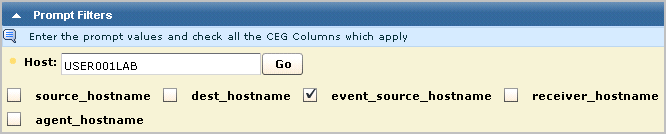
  3. Enter the WMI server name configured for the sensor in the Host field. Clear the other check marks and click Go.

    Prompt example - showing host search

    Events from the WMI server event sources appear.

  4. Click the CA Severity and scroll through to find a warning. A compressed example without the Date and Event Source columns follows:

    Warning event example for NT-Security

  5. Click Show raw event to display the raw events for the warning.
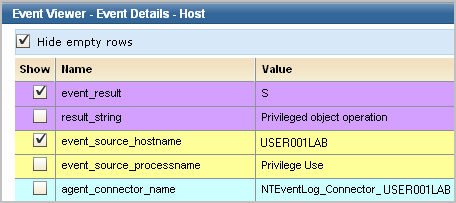
  6. Double-click the warning to display the Event Viewer with much more data. A few rows of example data follow:

    Result_string shows privileged object operation.

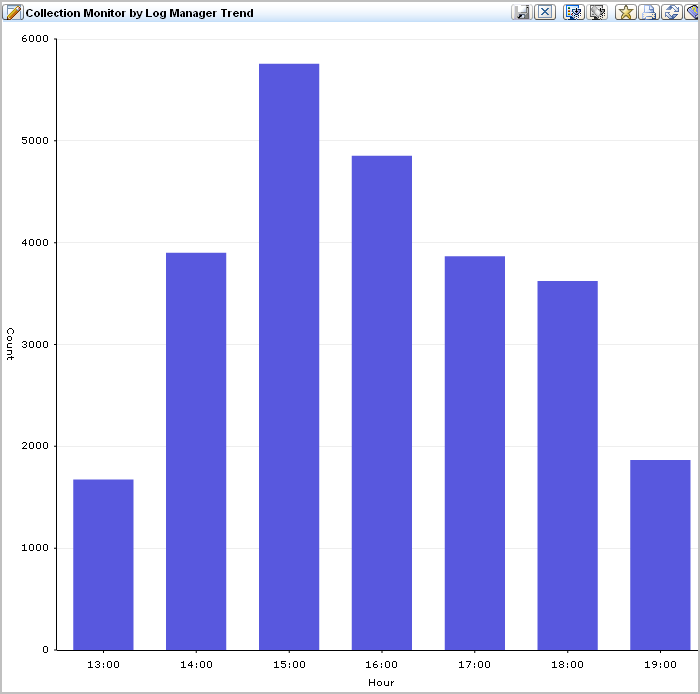
  7. Click the Queries and Reports tab, click a query from the Query List, for example, Collection Monitor by Log Manager Trend. View the resulting bar graph.

    View the bar graph for collection Monitor by Log Manager Trend.

  8. Click Reports. Under Report List, enter self in the Search field to display the report name System Self Monitoring Events. Select this report to display a listing of the events that are generated by the CA User Activity Reporting Module server.

Note: See online help or the Administration Guide for details on scheduling reports on information you are interested in analyzing.