

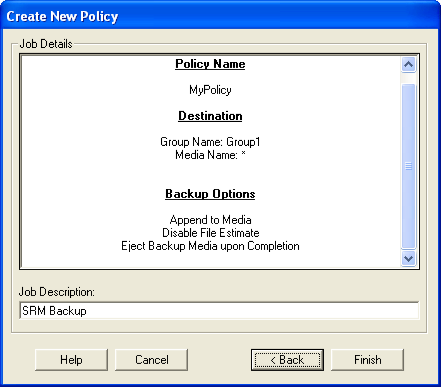
To create a new policy definition, follow these steps:
You have the option to add additional commands to the backup job, check the Additional Ca_Backup Parameters check box and enter the details in the text box:
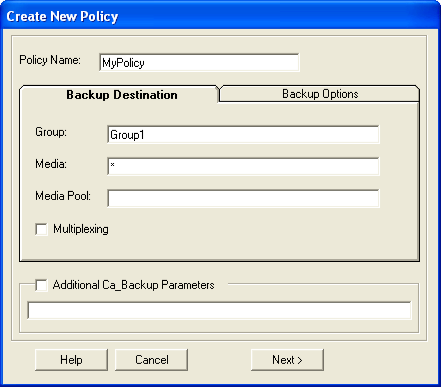
Note: CA SRM does not verify the text you enter in this text box, so ensure that it is correct because errors can cause the backup to fail.
You have the option to add additional commands to the backup job, check the Additional Ca_Backup Parameters check box and enter the details in the text box:
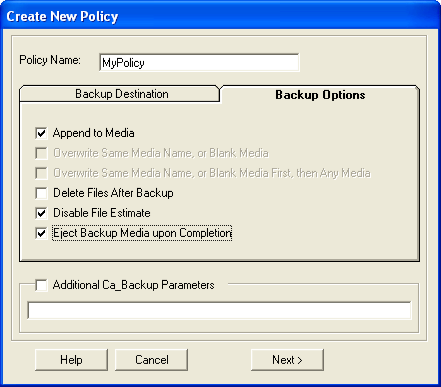
Note: CA SRM does not verify the text you enter in this text box, so ensure that it is correct. Errors can cause the backup to fail.
|
Copyright © 2016 CA Technologies.
All rights reserved.
|
|