

Managing CA ARCserve Backup › Performing Backups from CA SRM › Performing a Batch Backup
Performing a Batch Backup
The procedure to backup files is similar to the procedure for backing up volumes. The following example shows how you can perform a batch backup of files that are larger than 100 MB on computers more than 80 percent full. To do this, follow these steps:
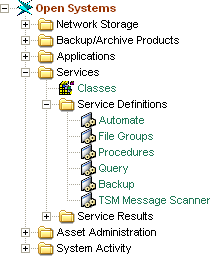
- You can access Backup services from the Open Systems menu by selecting Create Services and then Backup. You can also access the service by expanding the CA SRM Object Tree, selecting Open Systems, expanding Services, and then selecting Backup, as shown in the following diagram:
Expand the Templates folder, expand Network Storage, expand Managed Computer and select Files- Big:
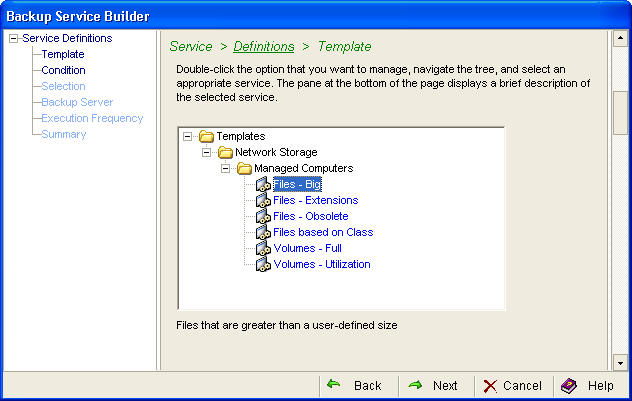
- Enter 100 and select MB from the drop-down list.
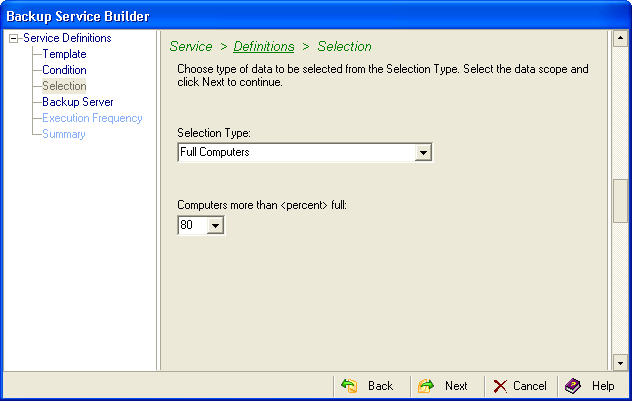
- Select Full Computers from the Selection Type drop-down list and 80 from the Computers more than <percent> full drop-down list:
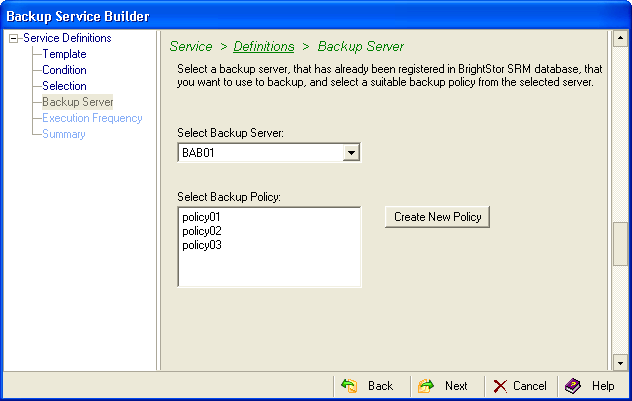
- Select the backup server that you want to perform the backup from the drop‑down list. Do one of the following:
- Select the backup policy that you want to apply to the backup.
- Create a new policy. Click Create New Policy. For more information, see Creating a New Policy Definition in this chapter.
- Select when you want to perform the backup.
- If you want to make changes, click the Back button. If there are no changes, click Launch. CA SRM performs the backup.
- Enter the name of the backup service in the Name field. Optionally, enter a description of the service.
Copyright © 2016 CA Technologies.
All rights reserved.
|
|