

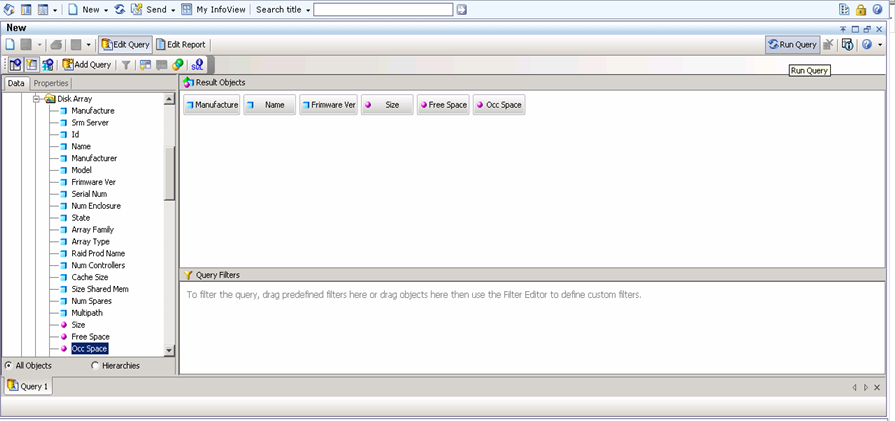
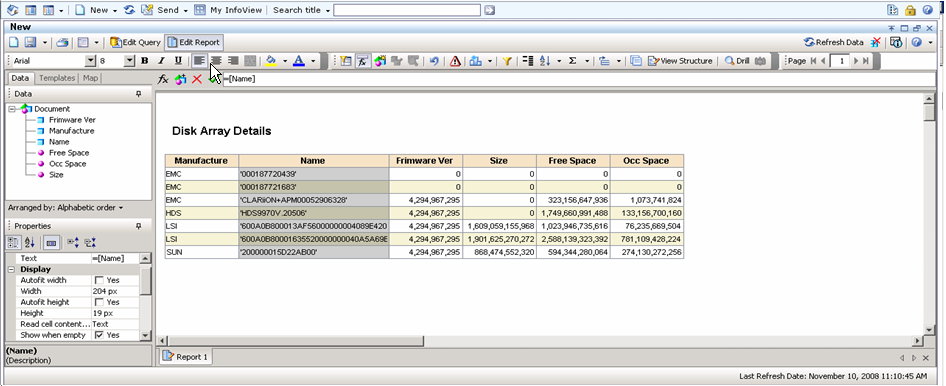
This procedure is a generic example of how you might use Infoview to create a new report.
Important! Do not save custom or modified reports in the Templates folder. When future versions of CA SRM Web Reporter are installed, the Templates folder will be overwritten. Any custom work saved in the Templates folder will be lost. If you modify a template or build a custom report, always save it to the User-defined folder or another folder of your choice.
To create a new Report
The New Web Intelligence Document opens opens.
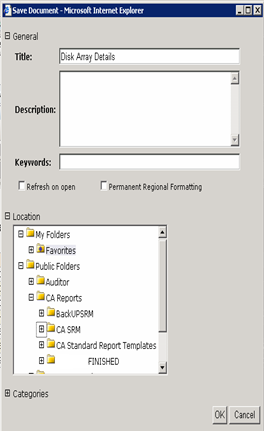
The new report is now available in the location you identified in the previous step.
|
Copyright © 2013 CA.
All rights reserved.
|
|