

CA SRM Web Reporter ships with the access rights preconfigured, but you can change any of the default settings. This procedure is a generic example of how you might use CMS to reassign access rights to an existing report.
To change the report access settings
The User Security dialog appears.
The Add Principals dialog appears.
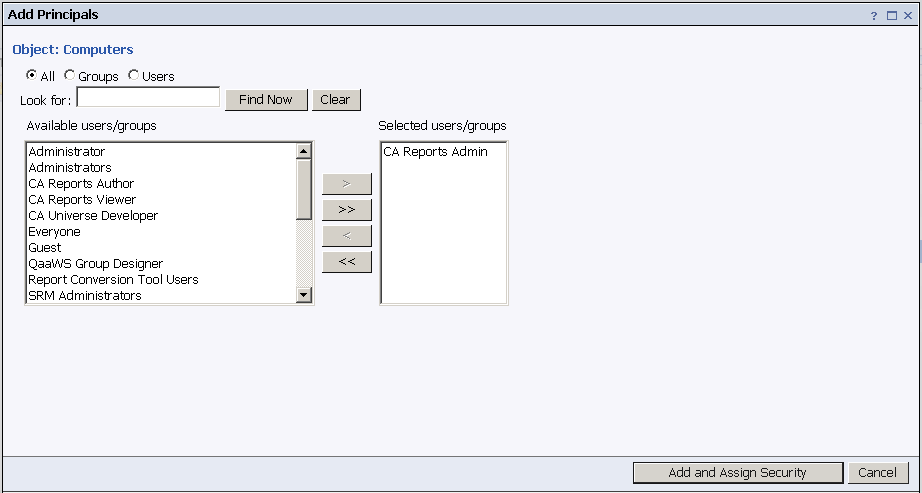
The groups with access are in the window on the right, and the available groups are on the left.
The Assign Security dialog appears.
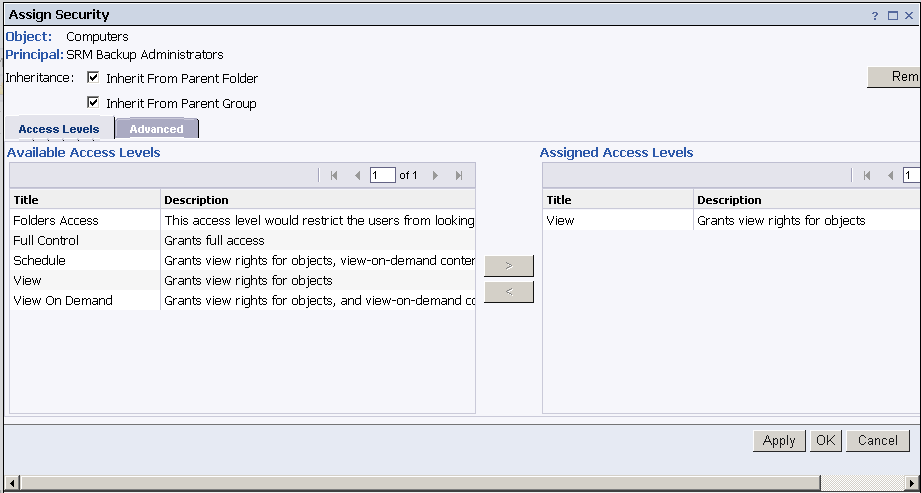
If necessary you can also set Advanced access rights by selecting Advanced tab and click Add/Remove Rights.
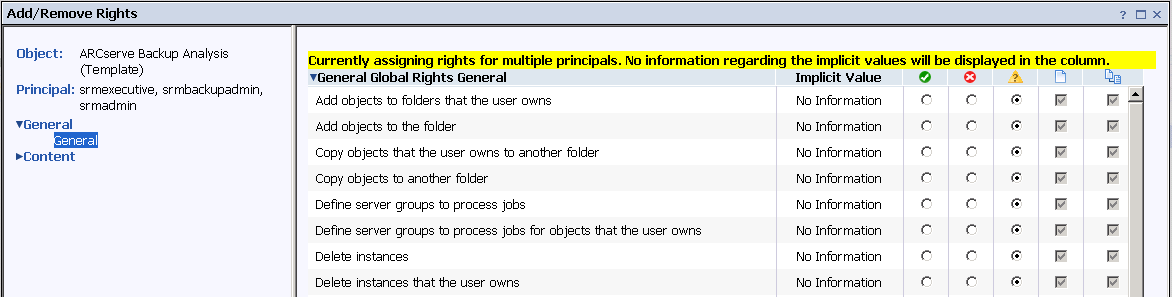
You can now close the CMC, or move on to another report if you need to change more than this one.
Note: For more information about reports access settings, refer the BusinessObjects Enterprise InfoView User's Guide.
|
Copyright © 2013 CA.
All rights reserved.
|
|