

The Object Tree Toolbar, shown in the following tables, contains icons that provide quick access to these functions:
|
Icon |
Function |
|---|---|
|
|
Expands all branches of the Object Tree |
|
|
Collapses all branches of the Object Tree |
|
|
View the Object Tree in single or double pane mode |
|
|
Search for objects within the Object Tree |
|
|
Access the online help system |
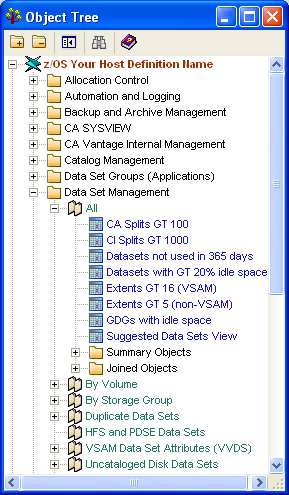
The Windows Client displays Object Tree categories as folders, as shown in the following example of a z/OS Object Tree. Each folder contains common types of source objects. Source object titles display in green font and can have subdirectories containing User Views (factory-supplied and user-created). User Views (factory supplied and user created) titles display in blue font. Joined Objects and Summary Objects are in sub-folders under the source object. Joined Objects and Summary Objects titles display in green font.
The following example shows the Object Tree with the Data Set Management folder open, the All source object expanded, and the Summary Objects and Joined Objects subfolders under the user-views created for the All source object:
|
Copyright © 2013 CA.
All rights reserved.
|
|


