

User Views › Object Menu Bar › Options Menu › View and Output Definition Wizard › Titles and Logos
Titles and Logos
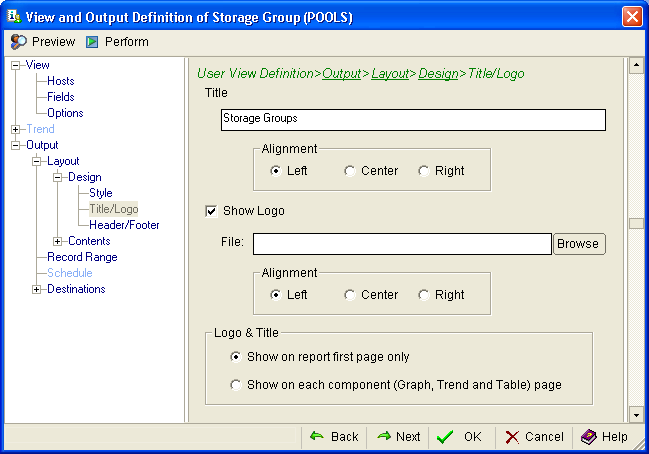
Use the Title/Logo page of the View and Output Definition wizard to define your report title and to import a logo. The following example shows the Titles and Logo page:
To specify a title and logo
- In the left pane click Title/Logo, the Title/Logo page is displayed.
- Type in a title in the Title text field.
- If you want to import a logo into your report, click the Show Logo check box, and use the browse button to browse to the location of the logo file you want to import. You can place it on the left, right or in the center of the report. The logo appears at the top of the report for destinations FILE (Formatted Report) PDF and EMAIL PDF.
The Windows Client supports the following image formats for logos:
Note: The logo is not included in Web outputs or HTML email outputs.
- Indicate whether you want the Logo and Title to only show on the first page of the report or on each component page.
- Click OK to save your title and logo settings.
Copyright © 2013 CA.
All rights reserved.
|
|