

User Views › Object Menu Bar › Options Menu › View and Output Definition Wizard › Style
Style
Use the Style page of the View and Output Destination wizard to select design parameters for your report, including font type and size.
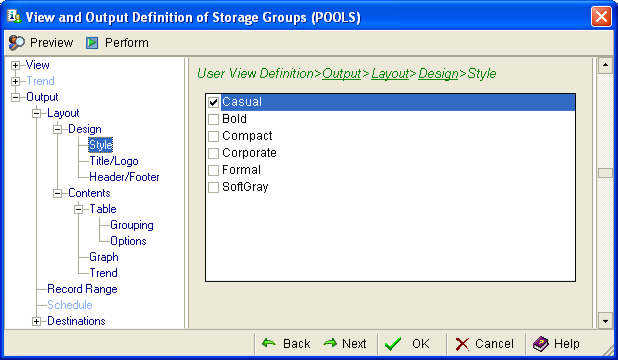
To define a report style
- Under Output, click the plus (+) sign to the left of Layout to expand layout options.
- Click the plus sign to the left of Design in the navigation tree, and select Style. The Style page is displayed. Each of the styles includes typeface and other design elements.
- Select the style elements you want included by checking the appropriate check boxes.
- Click Preview at any time to see how the output report will appear. A maximum of 100 table rows are used for the preview. If you have defined a Record Range, the Preview uses that starting row number and number of rows, up to the maximum of 100 rows as input to the preview.
- Click OK to save your settings.
Copyright © 2013 CA.
All rights reserved.
|
|